Images & graphics
WebP image won't open: how to convert it to JPG or PNG
The image you saved from a website is a .webp or .avif file, and your program, upload form or older system rejects it. You can convert it to JPG or PNG in your browser, and the choice mostly depends on whether the image has a transparent background.
- HNarzędzia editorial team
- Published:
WebP is an image format designed for the web. It saves images with lossy or lossless compression and supports transparency and animation. According to MDN, lossy WebP is on average 25-35% smaller than JPEG at a similar visual quality, and AVIF can be smaller still (MDN: Image file type and format guide, checked October 2026). Websites often serve pictures in these formats, so when you save one you end up with a .webp or .avif file.
Why the file won’t open
In a browser these files usually open fine. According to MDN, WebP works in all current versions of Chrome, Edge, Firefox, Opera and Safari, with one condition: Safari needs version 14 or later, and on a Mac also macOS Big Sur or later. AVIF is newer. Chrome supports it from version 85, Firefox from 93, Safari from 16.1 and Edge from 121. MDN notes that AVIF support is not yet as widespread as WebP support.
The trouble starts outside the browser. Older image editors, document software, print shops and upload forms keep their own list of accepted formats, usually JPG and PNG. A .webp or .avif file fails that check even when it has the right dimensions and a small size. Lowering the quality won’t help, because the format itself has to change.
If the picture comes from an iPhone and ends in .heic, that is a different format with a different fix. See HEIC photos from an iPhone.
JPG or PNG
| What you have | Choose | Why |
|---|---|---|
| A photo for a form, an email or a print | JPG | small file, opens almost everywhere |
| A logo, icon or cut-out product with a transparent background | PNG | JPG has no transparency, so the background gets filled with a colour |
| A screenshot or graphic with text and sharp edges | PNG | lossless, no blur around letters |
| A photo you will keep editing | PNG | no further quality loss, but a large file |
| An animated WebP | neither | JPG and PNG have no animation, so the tool saves a single frame |
Convert photos to JPG and images with transparency to PNG. A photo saved as PNG works too, but the file is many times larger, as the example below shows.
How to convert WebP to JPG or PNG
- Open WebP to JPG or WebP to PNG and add your file. You can add several at once.
- For JPG, keep the quality at 85% or pick another value. The slider runs from 10% to 100%. If the image has a transparent background, set the colour that will fill it (white by default). PNG has no quality setting because the output is lossless.
- Download the files one by one, or all of them in a single ZIP archive.
For an AVIF file, use the Image converter and choose JPG or PNG as the output format. Your browser has to be able to display that AVIF, because the browser does the decoding. Images are not uploaded to a server; everything happens on your computer.
Example: a transparent graphic and a photo
We used two synthetic test files saved as WebP. The first is a 1200×800 px graphic: a coloured badge with a semi-transparent shadow on a transparent background. The second is a 3000×2000 px landscape with a gradient and noise, so it is harder to compress than a typical camera photo. We also made an AVIF version of the second one. We converted them in Chrome on a Mac, at the default quality of 85%.
Transparency after conversion:
| File | Size | Dimensions | Transparency |
|---|---|---|---|
| Graphic as WebP | 10.9 KB | 1200×800 px | yes |
| JPG (white background, default) | 20.2 KB | 1200×800 px | none, white background |
| JPG (background #1a1a2e) | 16.5 KB | 1200×800 px | none, dark navy background |
| PNG | 123.3 KB | 1200×800 px | kept |
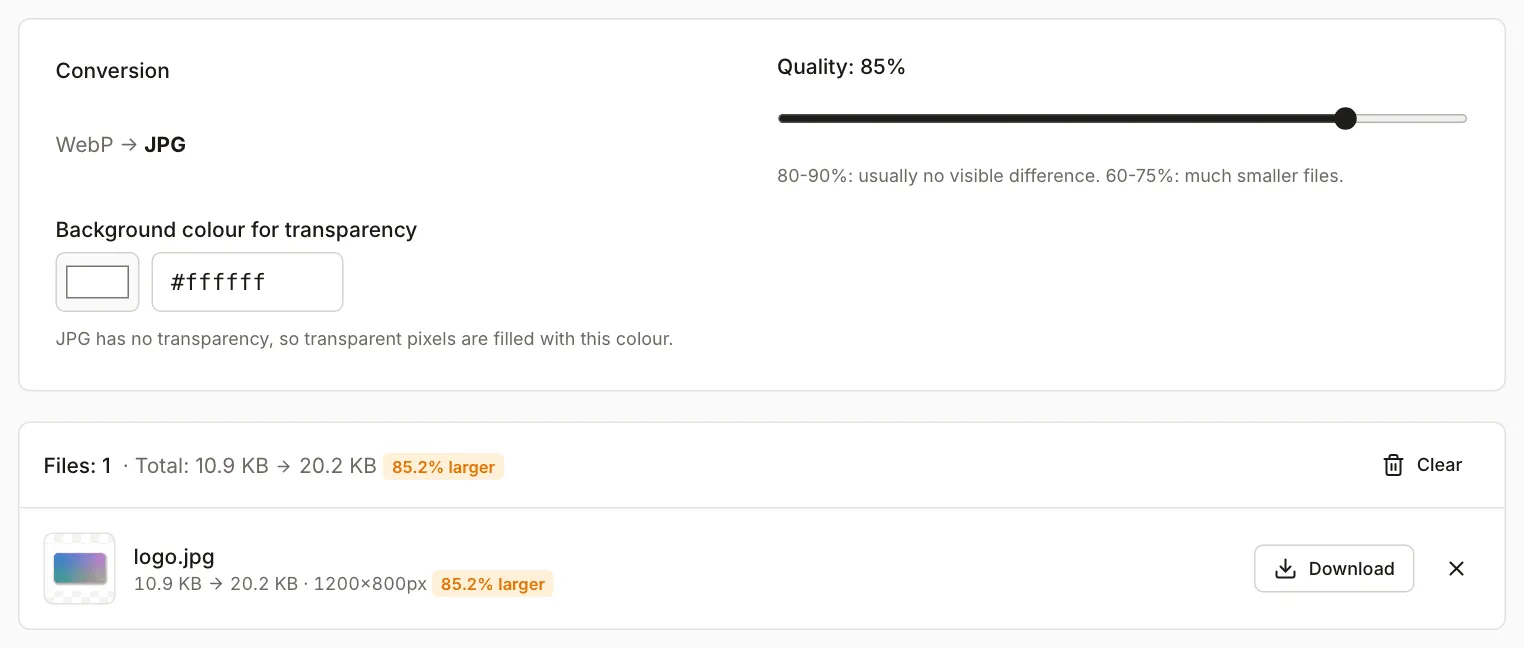
JPG has no transparent pixels. The tool fills them with the colour you choose, so the edges and the semi-transparent shadow blend into that background. A white JPG placed on a dark page shows a light rectangle around the graphic. If you know the background the image will sit on, enter that colour. If you don’t, or the background must stay transparent, pick PNG.
Photo size after conversion, in the units the tool shows (1 KB = 1024 bytes):
| File | Size |
|---|---|
| Photo as WebP, 3000×2000 px | 537.1 KB |
| JPG, quality 75% | 511.5 KB |
| JPG, quality 85% (default) | 779.4 KB |
| JPG, quality 90% | 1.1 MB |
| JPG, quality 95% | 1.8 MB |
| JPG, quality 100% | 4.1 MB |
| PNG | 8.9 MB |
| The same image as AVIF | 108.4 KB |
| AVIF converted to JPG, quality 85% | 434.3 KB |
| AVIF converted to PNG | 4.5 MB |
The dimensions stayed the same in every file. At the default quality the JPG was about 45% larger than the WebP, and the PNG was more than 16 times larger. For a result like this the tool shows an orange “larger” label. When you change format, that is expected.
Size and quality after conversion
JPG compresses less efficiently than WebP, so the file usually grows. Your file will behave differently from the example, because the ratio depends on the picture and on the quality of the original. In the example, raising the JPG quality from 85% to 100% made the file more than five times larger, even though the dimensions did not change.
Converting does not bring back detail that WebP or AVIF already discarded. A JPG saved at 85% reproduces the WebP image very closely, but it is one more lossy save. PNG is the only copy with no extra loss, and it is very large. Keep the original WebP and treat the JPG as a copy for sending. Each further JPG save adds loss, so don’t lower the quality of the same file repeatedly.
If the JPG is over a form’s size limit, shrink it with Compress image to target size or the Image compressor. How size, dimensions and format relate is covered in Image too large for an upload form.
What happens to metadata
A file converted in the tool has no EXIF data. The tool saves only the pixels, so the capture date, camera model and any GPS location are gone. In our test, the JPG had no metadata at all after conversion, even when the input file did.
When you send a picture to a form or a stranger, that is a plus. For archiving it is a loss, because photo galleries sort pictures by the EXIF date. What else to check before you share a photo is in Check a photo before you share it.
The photo lies on its side
Cameras and phones often store the pixels in one fixed order and record how to turn the picture in an EXIF orientation tag. Browsers and phone galleries apply the tag when they display the image, so the photo looks right. A program that ignores the tag shows it on its side.
We checked two cases with a synthetic 3000×2000 px landscape that should display as a portrait of 2000×3000 px:
| Input file | Result in the converter | What to do |
|---|---|---|
| JPG with a “rotate 90° clockwise” tag | JPG, 2000×3000 px, upright, no tag | nothing, converting is enough |
| WebP with an “rotate 90° clockwise” tag | 3000×2000 px, still on its side | rotate it 90° right in the tool |
The converter saves the image as the browser displayed it, then drops the tag. For the JPG, Chrome applied the orientation, so after conversion the photo is upright and every program shows it the same way. For the WebP with the tag, Chrome ignored the orientation and showed it sideways, so the converter saved it sideways. Support for this tag in WebP differs between browsers and programs, so look at the result after converting.
You can turn a sideways photo with Rotate image. The buttons rotate 90° left, 90° right or 180°. The preview shows the file the way your browser sees it, and the rotation counts from that view. In the example, one turn to the right put the WebP upright at 2000×3000 px.
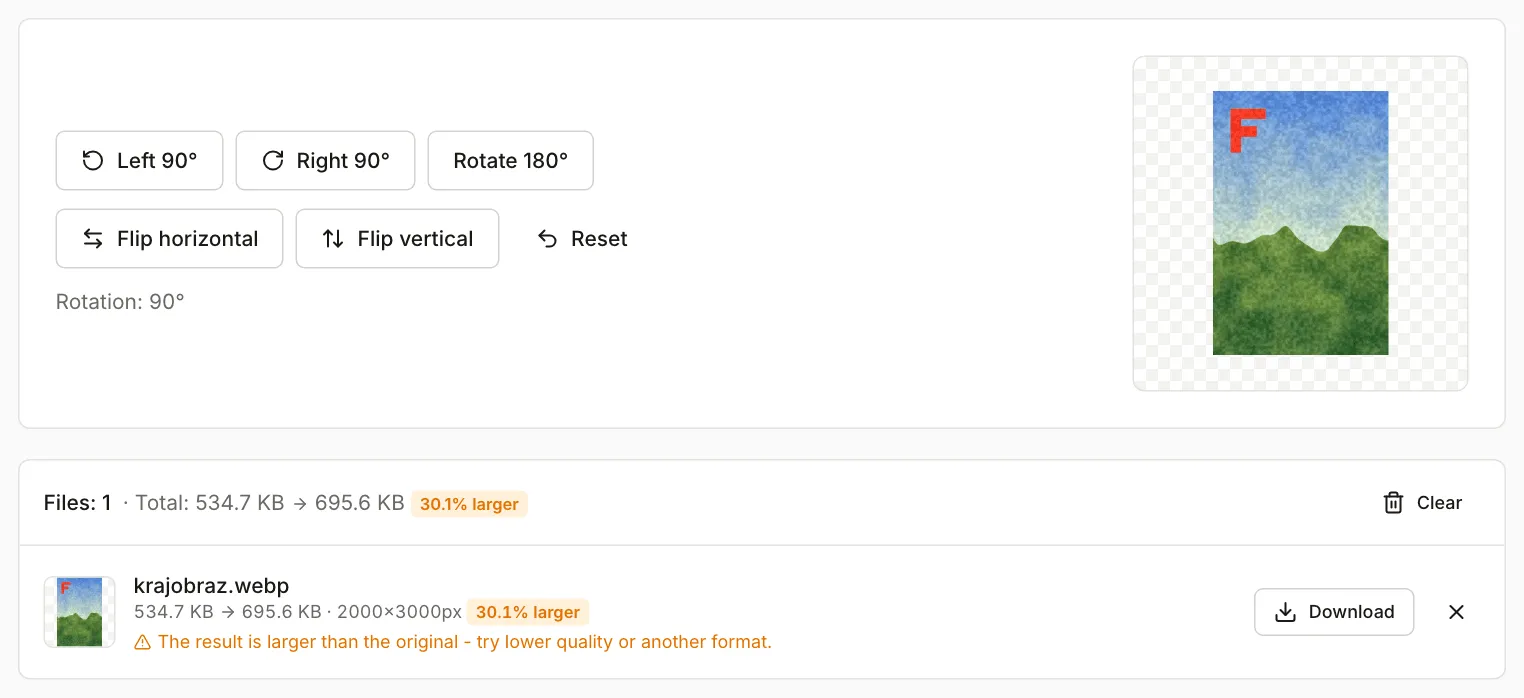
Rotating keeps the file format, so WebP stays WebP and JPG is saved at 92% quality. The file can grow: in the example from 534.7 KB to 695.6 KB. If you want a JPG, rotate first and then convert. Two lossy saves are an acceptable price as long as you don’t repeat them many times.
When the tool won’t help
- An animated WebP becomes a single still image in JPG or PNG. For animation you need a GIF or a video.
- An AVIF file opens in the tool only in a browser that supports AVIF. In an older browser the file will not load.
- An image that is already small and low in quality will not get better after conversion to JPG or PNG.