Images & graphics
How to make a 35×45 mm passport photo at home
Many countries use the 35×45 mm photo size, but the rules behind it differ. Before you take a photo at home, check what the office you're applying to asks for, including whether it accepts a photo you've cropped yourself.
- HNarzędzia editorial team
- Published:
A photo at the right size can still be rejected. Offices set rules for head height, background, the age of the photo and the digital file, and some don’t accept home-cropped photos at all. No tool can promise that a photo will be accepted; the issuing office decides.
Same size, different rules
UK passports and Polish ID cards both use 35×45 mm photos. Here is what the official pages say (checked October 2026):
| UK passport (gov.uk) | Polish ID card (gov.pl, in Polish) | |
|---|---|---|
| Printed size | 35×45 mm | 35×45 mm |
| Head | 29-34 mm from crown to chin (printed) | face takes up 70-80% of the photo |
| Background | plain cream or light grey (printed), plain light-coloured (digital) | plain white |
| Age of the photo | taken in the last month | taken within 6 months |
| Digital file | at least 600×750 px, 50 KB to 10 MB | at least 492×633 px, up to 2.5 MB, 35×45 mm proportions |
| Cropping | digital: “Do not crop your photo”; printed: not a cut-down version of a larger picture | the online application asks for a file in 35×45 mm proportions |
The differences go beyond numbers. gov.uk asks for a digital photo that shows your head, shoulders and upper body and is unaltered by software; the service crops it for you. Printed UK photos must be printed to a professional standard. For a UK passport, then, a photo cropped and printed at home doesn’t fit the rules. Take an uncropped photo with someone’s help during the online application, or get one from a photo booth or shop; gov.uk says booth and shop photos are more likely to be approved.
The Polish online ID application, on the other hand, expects a file that is already in 35×45 mm proportions and at least 492×633 px. Here, cropping the photo yourself is part of the application.
If you’re applying somewhere else, look up the rules on the issuing office’s or embassy’s own website. Check four things: the head size, the background colour, whether you may crop or edit the photo, and the pixel and file size limits for digital photos.
Taking the photo
The official rules above share a few points: a plain light background with no shadows, even lighting, face straight to the camera, a neutral expression with the mouth closed and eyes open, and no tinted glasses. Some practical ways to get there at home:
- Stand about half a metre to a metre in front of a plain, light wall, so your shadow doesn’t fall right behind your head.
- Face a window with soft daylight. Ceiling lights cast shadows under the eyes and nose, and a flash causes glare on skin and glasses.
- Ask someone else to take the photo with the phone at your eye level. A selfie at arm’s length distorts the face; a helper standing about 1.5 m away with the standard 1× or 2× lens gives a more natural result.
- Use the normal photo mode, without portrait mode, filters or beauty effects.
- Leave space above your head and around your shoulders. If the office lets you crop, you’ll set the frame later.
Take several shots and pick one with your eyes open, mouth closed and head straight.
Cropping to 35×45 mm
The passport photo maker crops a photo to the document size and shows guide lines for the head. It reads JPG, PNG, WebP and HEIC, so an iPhone photo doesn’t need converting first. The photo stays on your device.
- Choose your document under “Document type”. The 35×45 mm presets include the Polish ID card, a Schengen visa and a UK passport. Each sets the head height band from the tool’s preset values; compare them with your office’s rules.
- Load the photo, then drag it and zoom with the slider, mouse wheel or a pinch gesture.
- Put the chin on the red line, the top of the head (including hair) inside the blue band and the eyes near the dashed eye line.
- If your head is slightly tilted, use the Straighten slider (up to 20° either way).
- Keep 600 DPI and download the JPG.
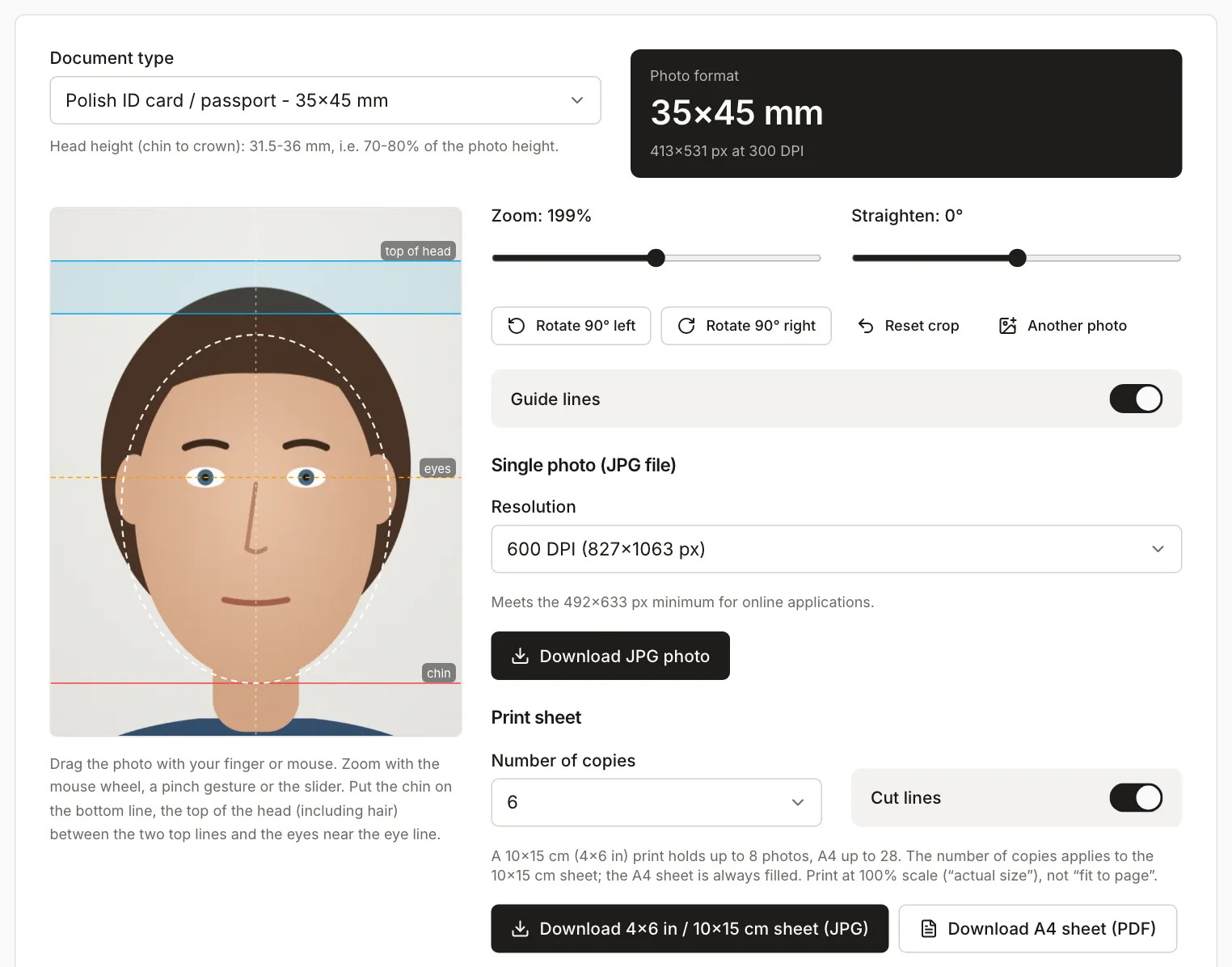
For a 35×45 mm photo, 600 DPI gives a file of 827×1063 px and 300 DPI gives 413×531 px. The DPI setting only decides the pixel count. Digital photo rules like the ones above are written in pixels and file size.
The guide lines help with head size and position. The tool doesn’t judge the background, lighting, sharpness or expression, and it doesn’t check whether an office will accept the photo. If a rotation or move leaves part of the frame outside the photo, the tool fills the gap with white and shows a warning. Fix the crop, because the white area can stand out against the wall behind you.
The tool also has presets in other sizes, including 2×2 in for US passports and 50×70 mm for Canadian passports. This guide covers 35×45 mm only.
Example: a test file
Instead of a photo of a real person, we used a synthetic image: a cartoon figure in front of a light wall, saved as a 3024×4032 px JPG, the portrait size of a 12-megapixel phone photo. We left space above the head, as you would at home. With the Polish ID preset, a 199% zoom put the head on the guide lines.
| File from the tool | Dimensions | Size |
|---|---|---|
| JPG, 600 DPI | 827×1063 px | 93 KB |
| JPG, 300 DPI | 413×531 px | 25 KB |
The 600 DPI file meets the Polish minimum of 492×633 px and, in pixels, gov.uk’s 600×750 px. For a UK application that doesn’t make it usable, because gov.uk wants an uncropped photo.
The cartoon has large smooth areas, so the file came out small; a real photo will be larger. To test the worst case, we loaded an image of pure noise, which JPG compresses worst of all. At 600 DPI that file was 592 KB. A file from the tool should therefore fit a 2.5 MB limit without extra compression. If a form sets a lower limit, shrink the file with Compress image to target size and keep it above the minimum pixel size. Limits can work both ways: the 25 KB file from the 300 DPI setting would fall below gov.uk’s 50 KB minimum.
Printing
If the office accepts home prints, the tool creates two print sheets:
- 4×6 in / 10×15 cm (JPG): 1795×1205 px at 300 DPI, up to 8 photos. The default is 6 copies; change it under “Number of copies”. Order it as a regular 4×6 print with no cropping or fitting.
- A4 (PDF): a landscape page with 28 photos.
Print at 100% (“actual size”), not “fit to page”, then measure one photo with a ruler: it should be 35 mm wide.
To convert iPhone HEIC photos to JPG for other uses, see HEIC photos from an iPhone.