How to prepare a PDF for email
Your PDF is too big to attach, or someone asked for a smaller copy. Find out what is taking up the space, remove pages nobody needs, compress, and look at the result before you send it.
- HNarzędzia editorial team
- Published:
Images decide how much a PDF weighs. A text-only document exported from Word is usually tens or a few hundred KB. A scan with the same number of pages can be several MB or more, because every page in it is a picture.
What makes a PDF large
| Content | Why it takes up space | What usually helps |
|---|---|---|
| Scans and photos of documents | Each page is an image. An A4 page scanned at 300 DPI is 2480 × 3508 px, about 8.7 million pixels. | Compressing to a lower resolution, deleting pages you don’t need |
| Photos placed in a document | A phone photo often goes into the PDF at full resolution, even if it fills only a small box on the page. | Shrinking the photos before exporting from the source program, or compressing the whole PDF |
| Embedded fonts | A file can carry whole typefaces. Usually only the characters in use are embedded, so fonts are rarely the main cause. | Usually nothing |
| Text and vector graphics | Stored as drawing instructions, so they take little space. | Nothing, the file is already light |
A font example: the DejaVu Sans font file is 757,076 bytes, while our two-page test PDF, which embeds only the characters it uses from that font, is 13.7 KB.
A quick check: divide the file size by the number of pages. More than 1 MB per page almost always means scans or large photos. To see the images inside a document at their original resolution, open it in Extract images from PDF.
Email attachment limits
Gmail and Outlook.com both list 25 MB for personal accounts:
- Gmail: the limit for personal Gmail accounts is 25 MB. If you attach something bigger, Gmail removes the attachment and puts a Google Drive link in the email instead.
- Outlook.com: the attachment size limit for files is 25 MB. Larger files can be shared from OneDrive.
On work and school accounts the administrator sets the limits. The recipient’s server may accept smaller messages than yours does, and not every recipient will take a cloud drive link in place of an attachment. The message is also bigger than the file, because attachments are encoded for sending (Base64 adds roughly a third). A file just under the limit can still bounce. If the recipient has told you their limit, work to that number and leave some headroom.
Four steps before you send
1. Delete pages nobody needs
Blank sheets from the scanner, duplicate pages, the instructions page of a form, an old appendix. Organize PDF copies pages into a new file without redrawing them, so text and quality stay as they were. Deleting a scanned page removes its image too, so the file gets smaller straight away. If you only need to send part of a document, Split PDF can extract just the selected pages.
Do this first. Every later step then has fewer pages to process, and you have fewer pages to check.
2. Compress
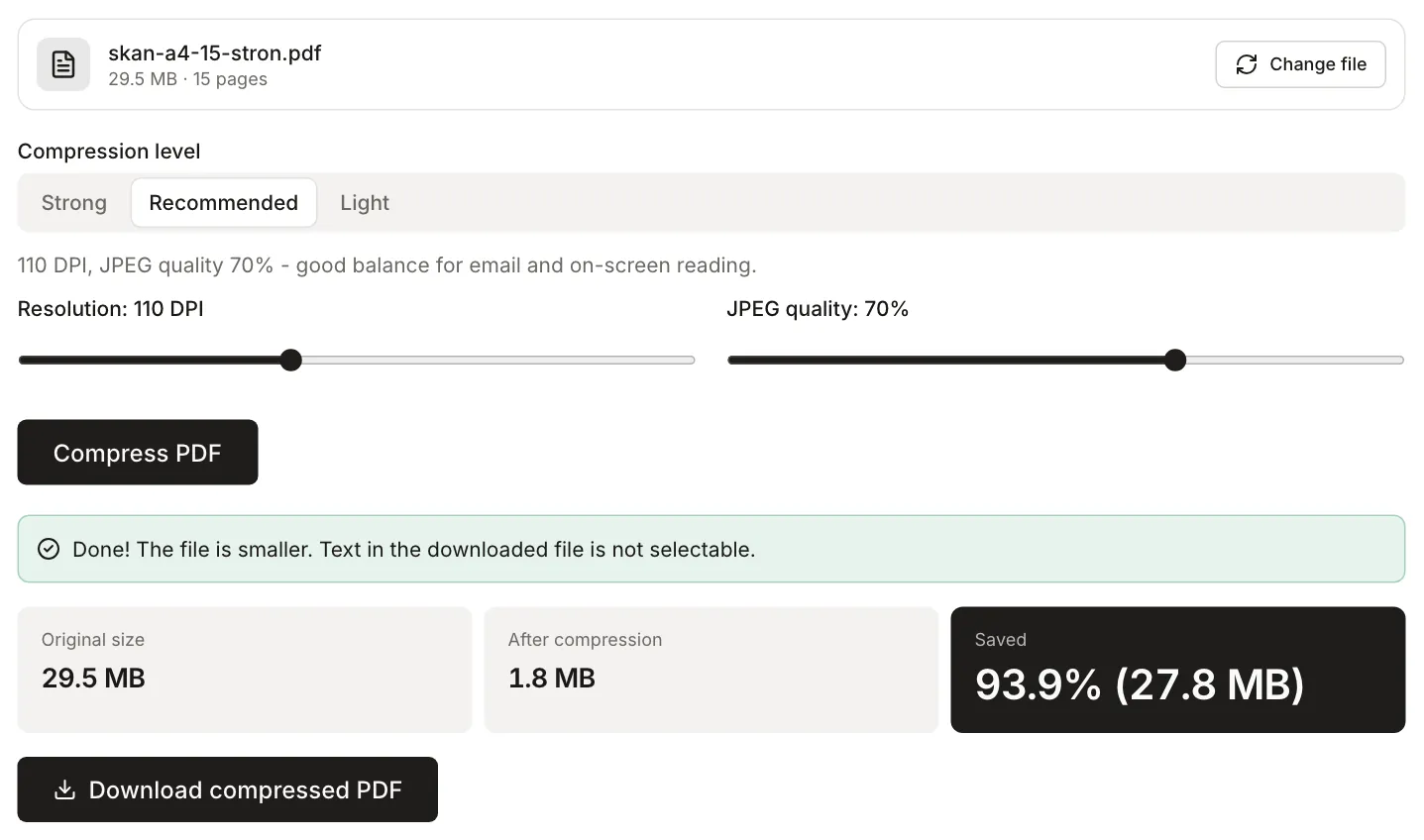
Compress PDF on HNarzędzia draws every page as an image at the resolution you choose, saves it as a JPEG, and builds a new PDF from those images with the same page sizes. Know what that means before you send the result:
- Text becomes part of the image. You can’t select, copy, or search it.
- Links and form fields stop working.
- If the original had a password, the result doesn’t, because it is a new document made only of images.
- If the result isn’t smaller than the original, the tool tells you and keeps the original.
| Level | Resolution | JPEG quality | When to use it |
|---|---|---|---|
| Strong | 72 DPI | 50% | Tight limit, document read only on screen |
| Recommended | 110 DPI | 70% | Everyday email to an office, bank, or employer |
| Light | 150 DPI | 85% | Documents someone will print, small print |
This works best on scans and documents full of photos. A text-only PDF usually gets bigger when its pages are turned into images, so the tool keeps the original. If a Word file is heavy because of the photos in it, shrink those photos in Word and export the PDF again. The text then stays real text.
3. Check that it’s readable
Open the compressed file at 100% zoom. Look first at the parts compression hurts most: small print, footnotes, numbers in tables, account numbers, stamps, and signatures. If anything is blurry, go back to the original and pick a higher level.
Also think about whether the recipient will need to search or copy text, such as an invoice number or a case reference. After compression they can’t. You can run the compressed file through OCR PDF, which adds an invisible layer of recognised text, or send the original another way, for example as a drive link. Our guide Why you can’t select text in a PDF explains where text-free PDFs come from.
4. Still too big? Split it
If the compressed file is still over the limit and lower quality would make it hard to read, send it in several emails. Split PDF cuts the file by page ranges (for example “1-12, 13-24”) or every N pages, without compressing again. The parts add up to roughly the size of the whole, so splitting only helps when you send them separately. Say in each email how many parts there are, e.g. “part 1 of 2”.
Example: a 15-page scan
We made the test file skan-a4-15-stron.pdf ourselves: 15 A4 pages, each one only a JPEG image of 2480 × 3508 px (300 DPI) with text on a greyish, noisy background, like a scan from an office printer. It is 29.5 MB, so it goes over the 25 MB limit in Gmail and Outlook.com. It has no text layer: pdf.js finds no characters on any page.
| Version | Size |
|---|---|
| Original | 29.5 MB |
| Strong (72 DPI, 50%) | 649.3 KB |
| Recommended (110 DPI, 70%) | 1.8 MB |
| Light (150 DPI, 85%) | 4.9 MB |
| No compression, split into pages 1-8 and 9-15 | 15.8 MB and 13.8 MB |
Every version here fits under 25 MB, but your file will give different numbers. They depend on the page count, colour, background noise, and how many photos each page has. Splitting without compression keeps the full scan quality and costs you a second email.
The same test on a two-page text-only PDF (13.7 KB) would produce files bigger than the original: 104.1 KB on Strong up to 483.7 KB on Light. The tool says so, keeps the original, and shows no download button.
When not to compress
- Electronically signed files. Compressing, deleting pages, and splitting all create a new file without the signature. Send the original unchanged or share it as a link.
- PDF forms the recipient still has to fill in. The fields will stop working.
- Documents that go into software that reads the text, such as an invoice for accounting. Send the original or add a text layer with OCR.
If you’re attaching photos as well, such as a picture of an ID or a receipt, see our guide on images that are too large to upload.