Why you can't select text in a PDF
You drag across a PDF and the whole page gets selected, pasted text comes out as gibberish, or Ctrl+F finds nothing. Each symptom has a different cause and a different fix.
- HNarzędzia editorial team
- Published:
A PDF can look like an ordinary document and still contain no letters a program can read as text. The page may be a photo of a sheet of paper, or the text may be stored as shapes. Sometimes the text is there, but the author blocked copying or the font doesn’t say which characters its glyphs stand for.
Three main causes
A scan: the page is a picture
Office printers, scanners, and phone scanning apps save each page as an image. The letters are pixels, just like a coffee stain on the paper. Without optical character recognition (OCR), no program can read text from such a file.
A text document with something in the way
The text is in the file, but something stops you using it:
- Restrictions set by the author. A PDF can have content copying disabled. In Adobe Acrobat Reader you’ll see this in the document properties, on the Security tab. If you need the text, ask the sender for an unrestricted copy.
- Text converted to outlines. Design programs and some print shops turn letters into vector shapes. The page stays sharp at any zoom, but to a program there is no text on it.
- Broken font encoding. The letters display correctly, but the file doesn’t record which characters they are. Copied text turns into random symbols or loses accented letters.
The page became an image along the way
The file may have had text that disappeared later:
- compression that redraws pages as images, such as Compress PDF on HNarzędzia,
- printing to PDF as an image, which some programs offer,
- turning pages into pictures and back again, for example PDF to JPG followed by JPG to PDF,
- printing the document and scanning it.
If you still have the file from before that step, use it. It has real text and doesn’t need OCR.
How to check
| Test | Result | What it means |
|---|---|---|
| Drag the cursor across a sentence | The whole page highlights, or nothing does | An image: a scan or a rasterised page |
| Drag the cursor across a sentence | Individual words highlight | The text is in the file |
| Ctrl+F (Cmd+F on a Mac) for a word you can see | No matches | No text layer, or broken encoding |
| Zoom to 400% | Letter edges look jagged or blurry | An image |
| Zoom to 400% | Letters stay sharp but can’t be selected | Text converted to outlines |
| Copy a sentence into a plain text editor | Gibberish or missing accented letters | Broken font encoding |
| PDF to Text | Empty result or a message saying it’s a scan | No text layer |
PDF to Text reads the text stored in the file. When the pages hold almost none (under about 15 characters per page on average), it treats the file as a scan and says so.
We tried this on test files we made ourselves. A two-page A4 document generated with real text has 1,422 characters (not counting spaces) on each page, and PDF to Text reads all of it, Polish letters included. A five-page “scan”, where every page is a 2480 × 3508 px JPEG of similar text, has no characters at all, and the tool shows its “No text layer” message. We got the same message for the text document after turning it into images with PDF to JPG (150 DPI) and back into a PDF with JPG to PDF, even though the pages look almost the same.
When to use OCR
OCR makes sense when the file has no text (a scan or a rasterised page), or when it has text that copies as gibberish. In the second case OCR PDF warns you the file already has a text layer, but lets you run recognition anyway. Copy the recognised text or download it as .txt. A searchable PDF adds a new text layer alongside the old one, so copying from it may still give you gibberish in places.
When the text in the file is fine, you don’t need OCR. PDF to Text reads it faster and without recognition errors.
How OCR PDF on HNarzędzia works:
- Each selected page is rendered at 300 DPI and recognised with the Tesseract engine.
- You can choose from four languages: Polish, English, German, and Ukrainian. Polish and English are selected by default. Select only the languages that appear in the document, because each extra one slows recognition down.
- On first use the browser downloads the OCR engine and the data for the chosen languages from the jsDelivr CDN. The document itself isn’t sent anywhere.
- You can download the result as .txt or as a searchable PDF: the original pages with an invisible text layer. The searchable PDF option isn’t available for password-protected files.
For a single photo of a page or a screenshot, use Image to text, which runs the same engine with the same languages.
How to check OCR output
OCR guesses which letters it sees, and it gets some wrong. The average confidence the tool shows gives you a sense of scale (below 60% it warns that the text needs careful proofreading), but even a high score doesn’t mean every number is right. Before you paste the text into a letter, spreadsheet, or form, check:
- Numbers: amounts, dates, account numbers, ID and tax numbers, invoice numbers. Compare them with the page image digit by digit. Swapping 0 for O, 1 for l, or 5 for S changes what the document says.
- Names. The engine can’t look them up in a dictionary, so it gets them wrong more often.
- Accented letters. If letters like ä, ß, or ł are missing or turn up in the wrong places, check that the right language was selected.
- Search. In a searchable PDF, search for a few words from different parts of the page. If one isn’t found, OCR misread it.
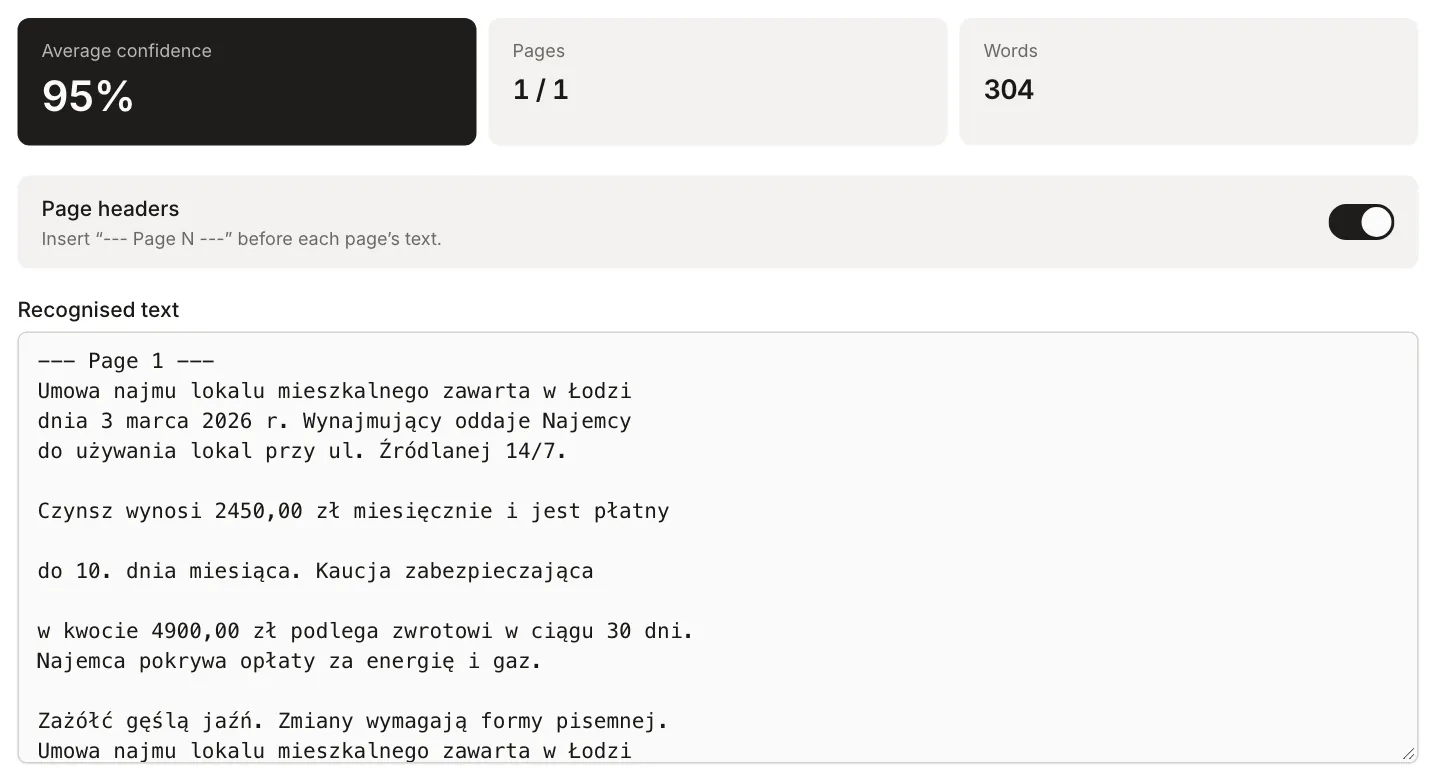
In our test, OCR PDF read page 1 of the five-page scan (a Polish tenancy agreement) with Polish and English selected, at 95% average confidence. All 40 lines matched the original character for character, including the amounts “2450,00 zł” and the street name “Źródlanej 14/7”, and the word “Kaucja” could be found in the downloaded searchable PDF. With English alone, the same page scored 87%, yet “ł” came out as “t” (“2450,00 zt”, “ptatny”), “ą” as “g” (“miesigca”), and “Łodzi” as “todzi”.
What limits OCR
- Scan quality. Straight, high-contrast scans at around 300 DPI work best. A skewed page, shadows, faded print, or a photo taken at an angle all make results worse. For grey, faded scans, turn on “Enhance the image before recognition” (greyscale plus higher contrast).
- Source resolution. OCR PDF renders pages at 300 DPI, but it can’t add detail that wasn’t in the original. A scan saved at low resolution or heavily compressed stays hard to read. If you control the scanning, choose 300 DPI. A phone photo of a page can be straightened first in the Document scanner.
- Languages. Only the selected languages are recognised. Text in another script or a language not on the list will come out wrong.
- Handwriting, tables, and columns. Handwritten notes are recognised poorly. In tables and multi-column layouts, the order of text in the output can differ from the page.
If your text-free PDF came from compressing it for email, see How to prepare a PDF for email. It covers when rasterising compression is worth it and when to send the original.