How to sign a PDF without printing it
You can put your handwritten signature into a PDF in a few minutes: draw it with your finger or mouse and drop it above the line. An image of your signature isn't a qualified electronic signature, though, so check what the recipient expects first.
- HNarzędzia editorial team
- Published:
Print, sign with a pen, scan: that’s a lot of effort for one page. Often all you need is an image of your handwritten signature in the PDF, for example on a school permission slip, a delivery confirmation, a library card application, or any document the recipient simply wants “signed”. Before you do it, make sure that kind of signature will be accepted.
An image of a signature vs an electronic signature
Sign PDF places a PNG image of your signature on the page. Legally, that’s not the same as the electronic signatures used for official filings or contracts signed at a distance.
In the EU, the eIDAS Regulation sets out three levels of electronic signature. The European Commission explains them on its page What is eSignature:
| Level | What it is | Legal effect |
|---|---|---|
| Simple electronic signature | Data in electronic form attached to a document and used to sign it. The Commission’s example: writing your name under an email may count. | Can’t be refused as evidence just because it’s electronic or not qualified (eIDAS, Article 25(1)). |
| Advanced electronic signature | Uniquely linked to and able to identify the signer, and linked to the document so that any later change is detectable. | As above. Only the qualified level is explicitly given the same effect as a handwritten signature. |
| Qualified electronic signature | An advanced signature created with a qualified signature creation device and based on a qualified certificate from a provider on a national trusted list. | Equivalent legal effect to a handwritten signature across the EU (eIDAS, Article 25(2)). |
Sources checked on 11 October 2026.
Adding an image of your signature to a PDF does not create a qualified electronic signature. It doesn’t meet the requirements of an advanced signature either: there’s no certificate, nothing confirms who placed the image, and nothing in the file reveals later changes. Anyone who has the file can copy the image or edit the document.
In practice:
- If a form, an authority, or the other party to a contract asks for a qualified electronic signature, or for signing through a specific service such as a national e-ID, an image of your signature won’t do. The Commission notes that when a certain level is required, a higher level will probably be accepted.
- If the recipient just asks for a “signed copy” and you’re not sure an image is enough, ask before you send it.
- Outside the EU, other e-signature laws apply. Check the rules where the document will be used.
This guide sums up the sources above and isn’t legal advice.
Fill in the form first
The signature usually goes on last, so start with the fields. If the PDF has interactive fields, Fill PDF Form shows them as an ordinary form on the page. In a “flat” PDF without fields, you can type anywhere on the page with “Add text anywhere” or use Add text to PDF. Accented characters are written with the embedded DejaVu Sans font.
Pay attention to “Flatten the form after filling”. We tested it on a sample A4 application with four text fields and a checkbox. Without flattening, all 5 fields stayed in the file after the signature was added, values included, so the recipient could still change them after you signed. With flattening, the values became part of the page and no fields were left in the file. If you’re sending the final version of a document, flatten it before signing.
Draw, type, or upload your signature
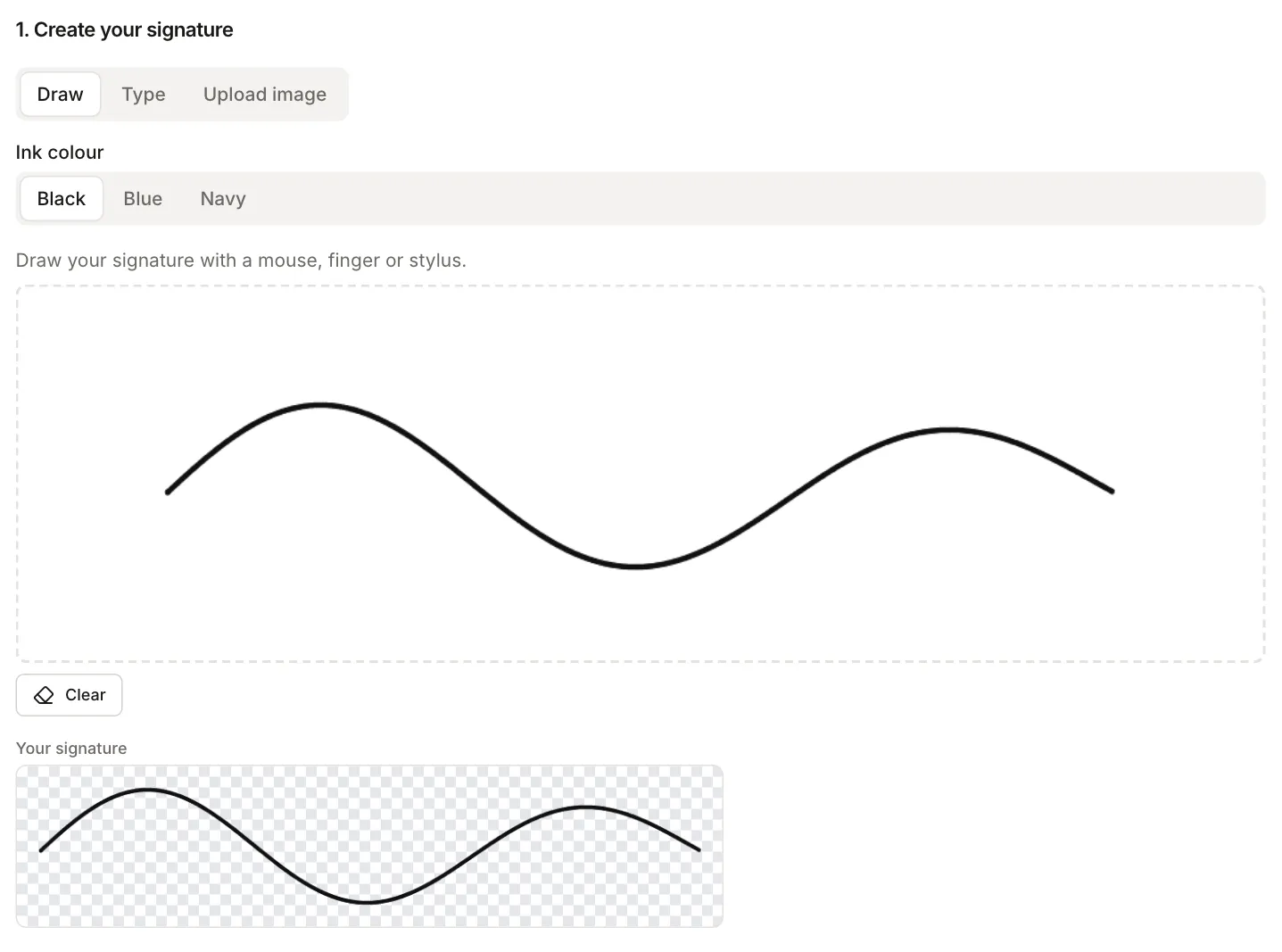
Sign PDF gives you three ways to create a signature:
- Draw it with a mouse, finger, or stylus, in black, blue, or navy ink. On a phone, turn the screen sideways for more room.
- Type your name in one of three handwriting styles. How it looks depends on the fonts installed on your system.
- Upload a photo of your signature on paper as PNG, JPG, or WebP. “Remove white background” makes the light background transparent. Black pen on white paper in good light works best.
The tool trims the signature to the ink with a small margin and saves it as a PNG. A drawn or typed signature has a transparent background, so it doesn’t hide the line or any text underneath. An uploaded photo gets one when “Remove white background” is on. Check the “Your signature” preview before you move on. If the line has gaps or something went wrong, click “Clear” and draw it again.
Place the signature and save
Click a spot on the page preview or drag the signature above the line. The slider sets its width from 5% to 70% of the page width; the default 25% is about 52 mm on an A4 page. You can put the signature on the current page only, the last page, or every page, for example as initials.
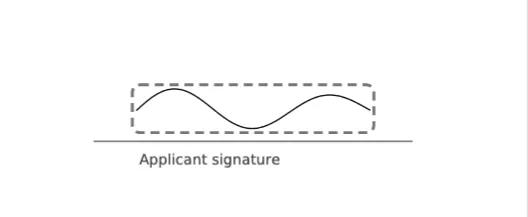
In our test, the filled-in application was 23.8 KB, and 32.5 KB with the signature added. The signature went into the file as a 776 × 148 px PNG image. The page isn’t turned into an image, so the document text can still be selected and searched. The document and your signature never leave your device; everything runs in the browser.
Digitally signed PDFs: edit first, sign electronically last
If a PDF already carries an electronic signature, such as a qualified one, don’t add an image of your signature to it. An electronic signature covers the bytes of the file as they were at signing. Sign PDF saves the file from scratch, so the existing signature no longer matches the content.
We checked this on our sample application, digitally signed with a test certificate (CMS format, the kind commonly used for signatures in PDFs). Before the change, the digest in the signature matched the file. After adding an image of a signature and saving, the file shrank from 35.9 KB to 25.9 KB, no longer started with the original bytes, and the digest no longer matched. Software that checks signatures won’t validate a signature like that. Fill PDF Form and Add text to PDF also save the file from scratch.
So the order is: fill in the form, add the image of your signature if you need one, and apply the electronic signature last. Any change to the file after that means signing again.
If the recipient wants a document signed with a pen, scan it with your phone. How to scan a document with your phone to PDF shows how to get a readable scan, and How to prepare a PDF for email helps before you send it.