How to crop white margins from a PDF
Wide white margins shrink the text on a phone screen and when you print on smaller paper. Cropping changes the visible area of the page, but whatever falls outside it stays in the file.
- HNarzędzia editorial team
- Published:
A PDF viewer always shows the whole page, empty margins included. On a monitor that rarely matters. On a phone, which fits the page to the screen width, every centimetre of margin makes the letters smaller.
When margins get in the way
- Reading on a phone or e-reader. An A4 page with 30 mm cropped from each side is 150 mm wide instead of 210 mm. Fitted to the screen width, the text is 1.4 times larger (210 ÷ 150).
- Scans with a wide border. A flatbed scanner captures the whole glass, so a small sheet ends up in the middle of a big grey or white page.
- Printing on smaller paper. When you print an A4 page on A5 with “fit to page”, the printer shrinks the margins along with everything else. Cropped first, the same content prints noticeably larger (example below).
- Slides and charts exported to PDF with a lot of empty space around the drawing.
Don’t crop if the recipient needs a specific page size, such as A4 for an official form. A cropped page has different dimensions.
How to choose the values in millimetres
Crop PDF takes four margins in millimetres: top, right, bottom, and left (all 0 by default). These sizes help:
| Format or unit | Value |
|---|---|
| A4 | 210 × 297 mm |
| A5 | 148 × 210 mm |
| US Letter (8.5 × 11 in) | 215.9 × 279.4 mm |
| 1 inch | 25.4 mm |
| 1 point (pt) | 1/72 inch, about 0.353 mm |
If you think in inches, multiply by 25.4: a 1 inch margin is 25.4 mm, and 0.75 inch is about 19 mm.
The easiest way to measure a margin is on screen, then scale it. If an A4 page is 600 px wide on your screen and the left margin is 114 px, the margin is 114 ÷ 600 × 210 mm, about 40 mm. For Letter, use 215.9 mm instead of 210.
Leave a few millimetres between the crop and the text. Descenders (g, y, p), accents on capitals, and marks like the Polish ogonek stick out past the line of text, so a crop placed exactly at the text edge can clip them. Start with smaller values and increase them while watching the preview.
Mixed page sizes, rotation, and page ranges
One file can hold A4 and A5 pages, landscape pages, and pages that were cropped before. The same millimetre values affect them differently: 40 mm off the left and right is 38% of an A4 page’s width, but more than half of an A5 page.
In Crop PDF you enter the margins as the page looks in the preview, even if the file stores it rotated. If a page was cropped before, the new margins are measured from the edge you can see now, so repeated crops add up. The tool shows each page’s size before and after cropping. You can crop every page or just a range, such as “2-12” to leave the cover alone. If your settings would leave nothing of a page (say 75 mm off each side of a 148 mm wide A5 page), the tool names that page and doesn’t crop the file.
For example, the test file strony-mieszane.pdf has four pages: A4 portrait (210 × 297 mm), A4 rotated 90° (shown as 297 × 210 mm), A5 (148 × 210 mm), and A4 already cropped to 190 × 277 mm. Cropping 20 mm from every side gives 170 × 257 mm, 257 × 170 mm, 108 × 170 mm, and 150 × 237 mm.
Example: an A4 page with 40 mm margins
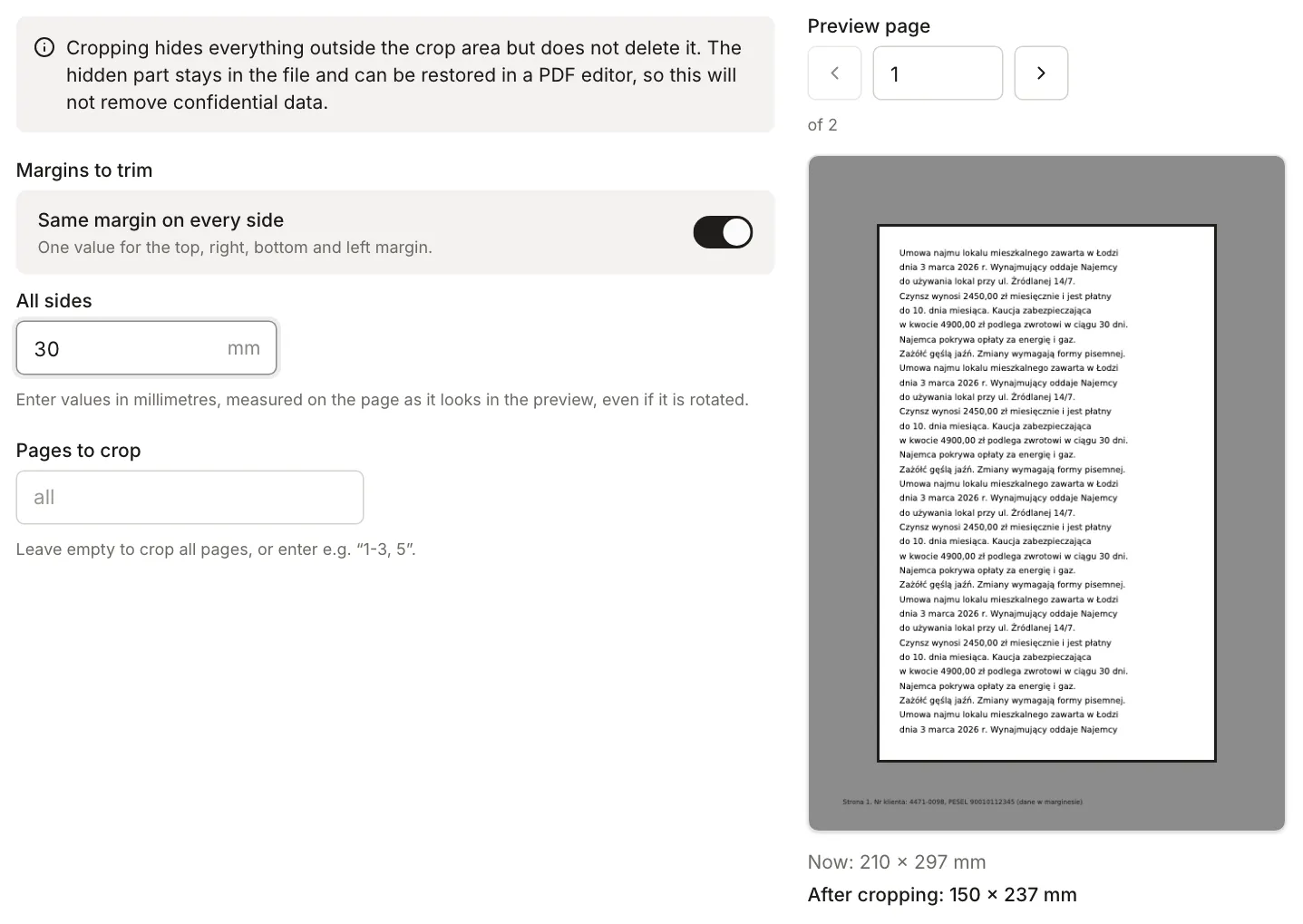
The test file tekst-a4-marginesy.pdf has two A4 pages of contract text that starts 40 mm from the left and top edges. In the bottom margin, 12 mm from the edge, there’s a grey footer with a customer number and a Polish national ID number (PESEL). The file is 13.7 KB.
After cropping 30 mm from every side, the pages are 150 × 237 mm. About 10 mm of margin is left above and to the left of the text, about 14 mm below it, and more on the right because the lines are short. The footer is no longer visible. Printed on A5 (148 × 210 mm) with “fit to page”, the two versions compare like this:
| File | Scale when printed on A5 | 10.5 pt text on paper |
|---|---|---|
| Original A4 | about 70% | about 7.4 pt |
| Cropped to 150 × 237 mm | about 89% | about 9.3 pt |
PDF viewers and printing show only the cropped area. Printed on A4 at 100%, a 150 × 237 mm page usually lands in the middle of the sheet. With “fit to page” it gets scaled up.
Cropping hides content but doesn’t delete it
Crop PDF changes the visible area of the page stored in the file (the CropBox). It doesn’t redraw the page, so text stays text, you can still select and search it, and quality doesn’t change. Everything outside the crop is still in the file.
In our test the cropped file was the same size as the original, 13.7 KB, because nothing was taken out. PDF to Text no longer returned the footer with the ID number. But when we reset the cropped file to the full page area (a single call in the pdf-lib library), the footer came back, number and all. Other programs may also read text outside the crop without any change to the file.
So cropping is the wrong tool for hiding personal data, account numbers, or parts of a contract before you send a file. For that you need a method that removes the content:
- A whole page with sensitive data: delete it in Organize PDF.
- Data near the edge: crop the page in Crop PDF, turn it into an image with PDF to JPG, then put the image back into a PDF with JPG to PDF. The image is made only from the visible area, so nothing outside the crop ends up in it. Instead of Crop PDF, you can crop the image itself in Crop image. At 150 DPI, 1 mm is about 5.9 px, so 30 mm is about 177 px.
- Data in the middle of the page: after converting to JPG, cover it in Blur part of an image with the “Black out” effect. Light blur can sometimes be partly reversed by software. A black-out leaves nothing of the data.
This kind of removal has a cost. The page becomes an image: you can’t select or search the text, links stop working, and the file gets bigger. In our test, we turned the cropped document into 886 × 1399 px images with PDF to JPG (150 DPI, JPG 85%) and put them back together with JPG to PDF (A4, no margin). The result had no text characters at all and weighed 453 KB instead of 13.7 KB. The footer with the ID number isn’t in the images. If you need a searchable file, run the result through OCR PDF. OCR reads only what’s visible in the image, so the removed data doesn’t come back. Our guide Why you can’t select text in a PDF covers text-free PDFs in more detail.
In JPG to PDF, set the margin to “None”, because the default 10 mm adds a new white border around the image. With the A4 page size the image is fitted into an A4 page, and if its proportions differ from A4 you’ll get white strips at the sides. That happened in our test, because an 886 × 1399 px image is narrower than A4. “Fit to image” makes the page match the image’s proportions, but its size in millimetres comes from the pixel count (1 px = 0.75 pt), not from the original page. Ours came out at 234 × 370 mm instead of 150 × 237 mm.
If you’re emailing the cropped PDF, How to prepare a PDF for email explains how to check its size and readability first.