Page numbers and watermarks in a PDF: order of steps and limits
Before you send or print a PDF you often need to straighten pages scanned sideways, add page numbers and mark the file "COPY" or "DRAFT". The order of these steps matters, and a digital signature in the file stops being valid after any of them.
- HNarzędzia editorial team
- Published:
The example in this guide is a synthetic 12-page A4 report that weighs 181.9 KB. Page 1 is a cover, pages 2-12 have body text, and page 5 is a table that was scanned sideways. We want to number the pages from page 2 so the cover stays clean, put a “COPY” watermark on every page and straighten page 5. You do it with three tools: Rotate PDF, Add Page Numbers to PDF and Add Watermark to PDF. File sizes are given the way the tools show them (1 KB = 1024 bytes).
The order of the steps
A page number or watermark is placed on the page as it looks at the moment you save. So the order is:
- Settle the page order: delete pages you don’t need and merge files in Organize PDF and Merge PDF. Numbers follow the order of pages in the file, so changing the page set after numbering throws the numbers off.
- Straighten pages scanned sideways.
- Add page numbers.
- Add the watermark.
- If the document needs an electronic signature, sign it last.
If the file also has to get smaller, do that before step 3. Compress PDF turns pages into images, so everything on the page at that moment, including a number and a watermark, stops being text. Compression is covered in How to prepare a PDF for email.
Pages scanned sideways
A sheet-fed scanner or a phone app can save a page so that, in a PDF viewer, the text lies on its side. In the example that is page 5: a portrait page with a table whose rows run from top to bottom.
In Rotate PDF, clicking a page thumbnail turns the page 90° clockwise. The buttons “Rotate left”, “Rotate right” and “Rotate 180°” act on the pages listed in “Pages to rotate”: an empty field means all pages, and “5” or “2-4, 7” picks specific ones. Choose the direction by the text. If the tops of the letters point to the right and the rows run from top to bottom, as in our table, rotate the page left. If the tops of the letters point to the left, rotate right. An upside-down page needs 180°.
The tool only changes the display angle saved in the file. It does not redraw the page, so the text on a rotated page can still be selected. After rotating left, page 5 measured 297 × 210 mm instead of 210 × 297 mm, and the table could be read without turning the screen.
A page number added before the rotation turns with the page. When we numbered the file first and then rotated page 5 to the left, the number ended up sideways along the right edge. When we rotated first and numbered afterwards, it stood in the middle of the bottom edge of the landscape page.
Page numbers: where and from which page
Add Page Numbers to PDF has six positions: top or bottom, each with left, center and right. By default the number sits at the bottom center, is 11 pt (you can choose 6 to 36 pt) and is 10 mm from the edge (3 to 40 mm). The position is the same on every page, so you can’t alternate numbers on the outer edge of the sheet for double-sided printing. Center works best for that. The tool doesn’t check what is under the number. If your pages already have a footer, choose the top or a corner and check the preview of a few pages.
The formats are “1”, “1 / N”, “Page 1 of N”, “- 1 -” and a custom template in which {n} is the page number and {N} is the last number in the file, for example “Report, p. {n}/{N}”. The word “Page” follows the language of the tool page. For another language, use a custom template. A template of “Report, p. {n}/{N}” gave “Report, p. 1/11” on page 2.
Two settings decide the numbers: “First page number” and the switch “Skip the first page (cover)”. A skipped cover gets no number but still counts. Results for our 12-page file:
| Settings | Cover (page 1) | Page 2 | Page 12 |
|---|---|---|---|
| First page number 1 | Page 1 of 12 | Page 2 of 12 | Page 12 of 12 |
| First page number 1, cover skipped | no number | Page 2 of 12 | Page 12 of 12 |
| First page number 0, cover skipped | no number | Page 1 of 11 | Page 11 of 11 |
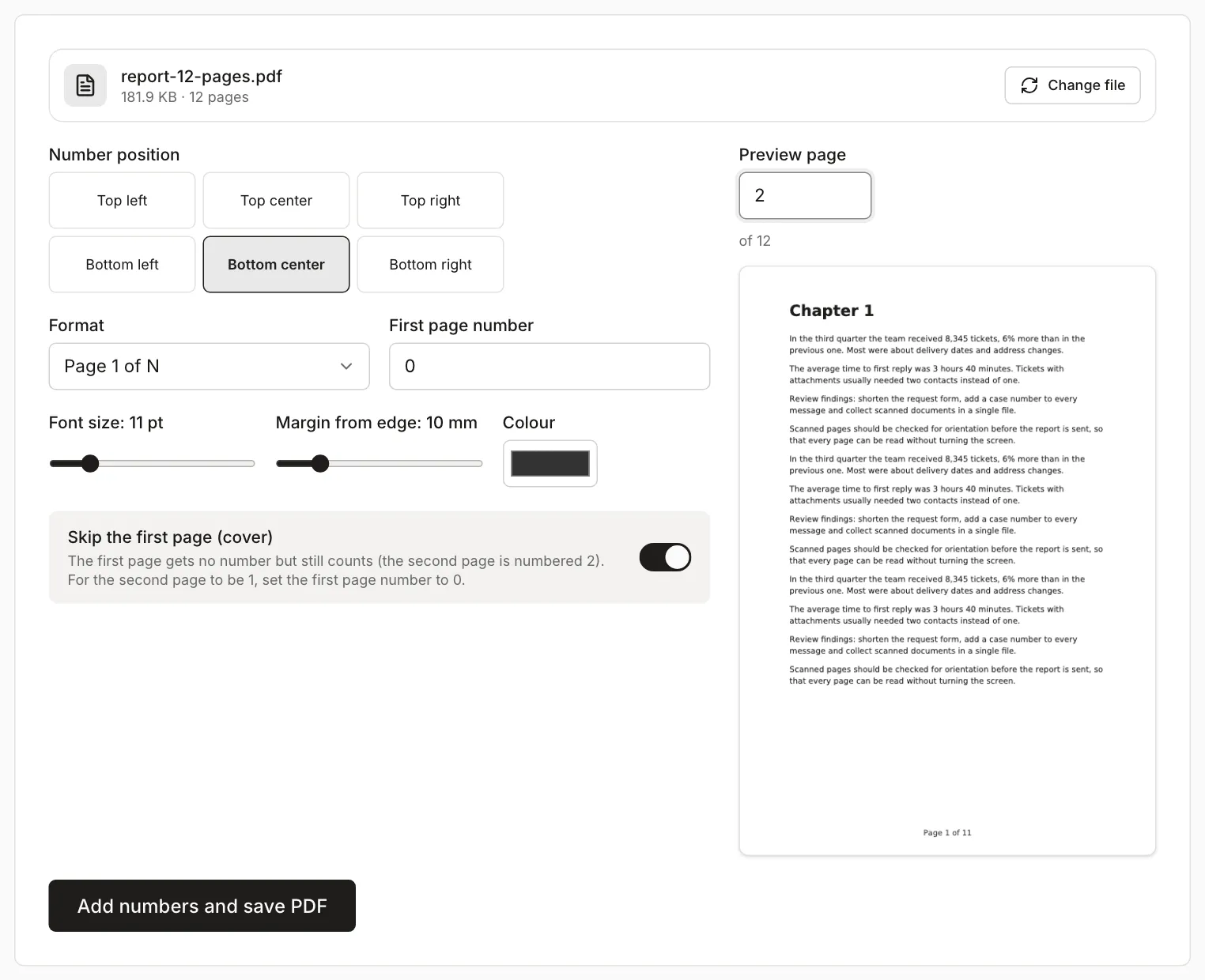
“N” is the last number in the file, not the number of pages. In the third row the file has 12 pages, and the last one reads “Page 11 of 11”.
If the recipient will refer to pages by the number in the PDF viewer, keep the first page number at 1, so the number on the sheet matches the viewer. If the cover shouldn’t count, set 0. Page 5 in the viewer then carries the number 4 on the sheet, so say in your email which numbering you mean.
When the file is a later part of a larger document, enter the number it should start from. With 13, our 12-page file is numbered from “Page 13 of 24” to “Page 24 of 24”, because “24” is the last number in this file. If the whole document has 30 pages, use a custom template of “Page {n} of 30”.
Numbering skips the first page only. There is no page range, so you can’t skip the last page or number only selected pages.
Watermark: text, pattern and recipient details
Add Watermark to PDF puts a text or an image (PNG, JPG or WebP, for example a logo) on every page. In the example we typed “COPY”. By default the text is red and bold, runs at 45° through the middle of the page and has 25% opacity, so the text underneath is still readable.
The settings ranges:
- opacity from 5 to 100%,
- rotation from -90° to 90° in steps of 5°,
- size from 5 to 100% (100% is the largest text that fits the page at the chosen angle),
- placement: center, top, bottom or a pattern over the whole page (size is then capped at 35%).
A single word is enough to mark status, for example “DRAFT” at the top at 0° or “COPY” in the center at 45°. Recipient details work better as a pattern, for example “COPY FOR: Example Bank, Łódź, 12 Oct 2026”. The pattern repeats the text about 55 times per page. Polish letters such as Ł and ź come out correctly because the tool embeds a font that includes them.
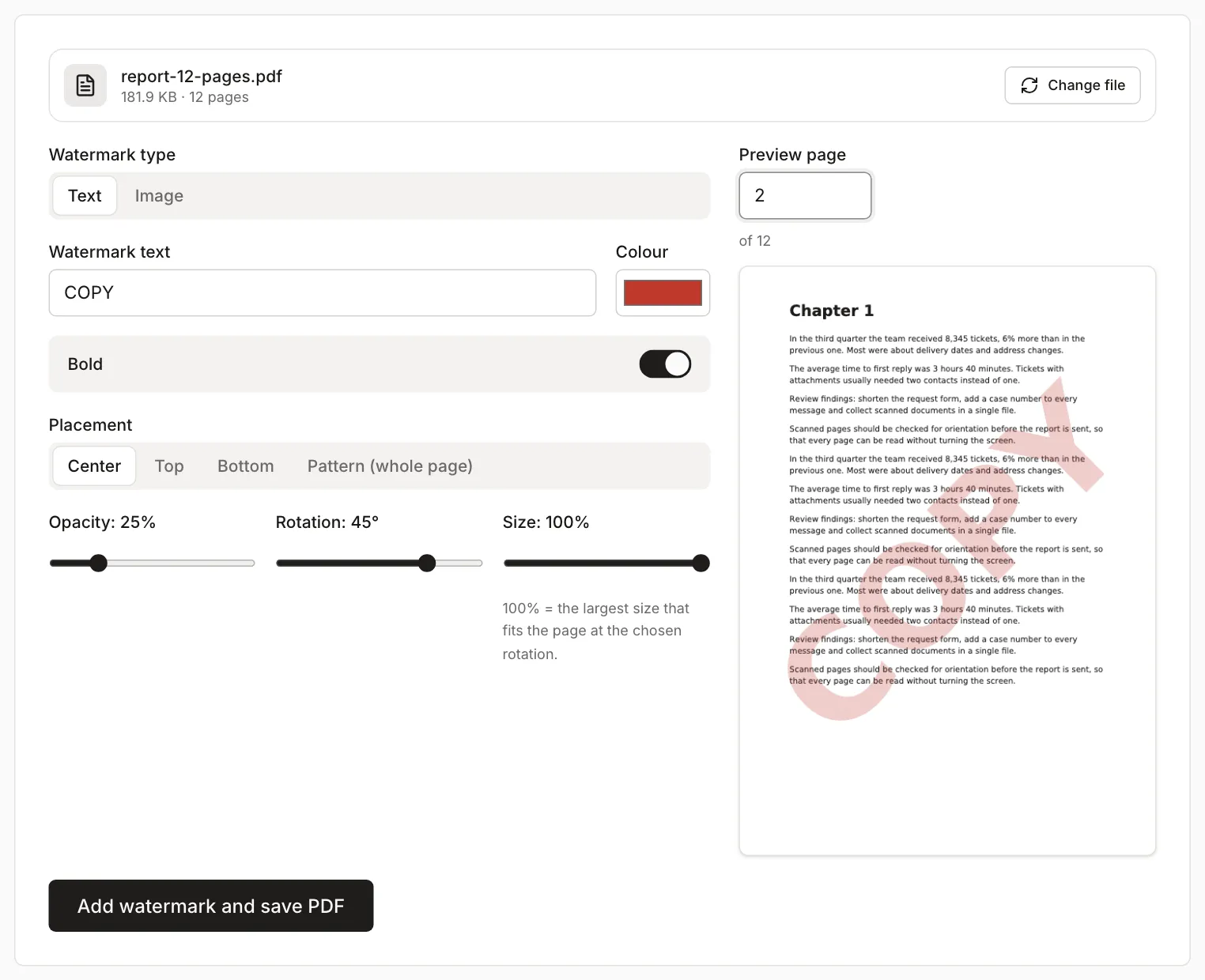
The watermark goes on all pages, the cover included. This tool has no page range, so unlike numbering it can’t skip the cover.
What stays in the file
After rotating page 5, numbering from page 2 and adding “COPY”, the file still has 12 pages. Page 2 holds all of the original text plus two new items: the number “Page 1 of 11” and the word “COPY” at 45°. A PDF viewer treats both as ordinary text: you can select and copy them, and the viewer’s search finds them. A pattern with a long text means about 55 such texts on every page, which may end up in what you paste when you copy. A logo uploaded as the watermark is an image and adds no text.
| Test file version | Size |
|---|---|
| Original (12 pages) | 181.9 KB |
| Page numbers only, from page 2 | 179.2 KB |
| “COPY” watermark only, centered | 178.5 KB |
| Page 5 rotated, numbers and “COPY” | 185.6 KB |
| Recipient details as a pattern over the whole page | 250.5 KB |
A single number or word adds a few KB because a font is added to the file. The tools write the file anew, so the size can also come out lower than the original, depending on how the program that created it saved it. The pattern with long text adds about 70 KB compared with a centered watermark.
What these changes do not cover
A watermark does not protect a document. Added this way, it is an ordinary piece of text placed on the page, and everything that was on the page stays underneath unchanged. In a PDF editor you can select it and delete it, and the content remains in place. “COPY” or the recipient’s details show what the file is for and who it is for, but they don’t stop anyone from using it. Compress PDF turns pages into images, and the watermark then becomes part of the image, but all the text in the document stops being selectable. Neither the watermark nor the file becomes protected by that.
A digital signature stops being valid after any change to the file. An electronic signature in a PDF confirms that the file hasn’t changed since it was signed. Rotating, numbering and watermarking all write the file anew, so the signature in the result is no longer valid, even after a small change. Add numbers and the watermark before signing, and send an already signed document unchanged. How to sign a file, and when a picture of a signature isn’t enough, is covered in How to sign a PDF without printing it.