How to extract pages from a PDF, delete pages and change their order
The recipient needs three pages out of twelve, or one page must not reach them at all. Here is which mode to pick, how to write page ranges, and what stays in the file after you cut pages out.
- HNarzędzia editorial team
- Published:
Often you only need to send part of a document: the pages that matter, in a file of their own. The tools here do that in your browser, but they write a new file rather than a trimmed copy of the original. As a result bookmarks, document properties and links to other pages of the document disappear. The rest of this guide shows on a test file what carries over and whether a deleted page really leaves the file.
If your file is simply too big to email, start with How to prepare a PDF to send by email. This guide is for the case where the recipient should get only part of the document.
Which mode to use
| You want to | Tool and mode | Result |
|---|---|---|
| Pull a few pages into one file | Split PDF, “Selected pages” mode | One PDF with the pages in ascending order |
| Separate chapters or attachments | Split PDF, “Page ranges” mode | One file per range, in a ZIP archive |
| Cut a document into equal parts | Split PDF, “Every N pages” mode | Files of N pages, the last one may be shorter |
| Get each page as its own file | Split PDF, “Every page” mode | One file per page |
| Drop a few pages and keep the rest | Organize PDF | One PDF without the marked pages |
| Reorder pages or duplicate one | Organize PDF | One PDF in the order you set |
| Combine chosen pages from several files | Extract the pages first, then Merge PDF | One PDF with everything in the files |
| Hand over one page as an image | PDF to JPG | JPG or PNG files |
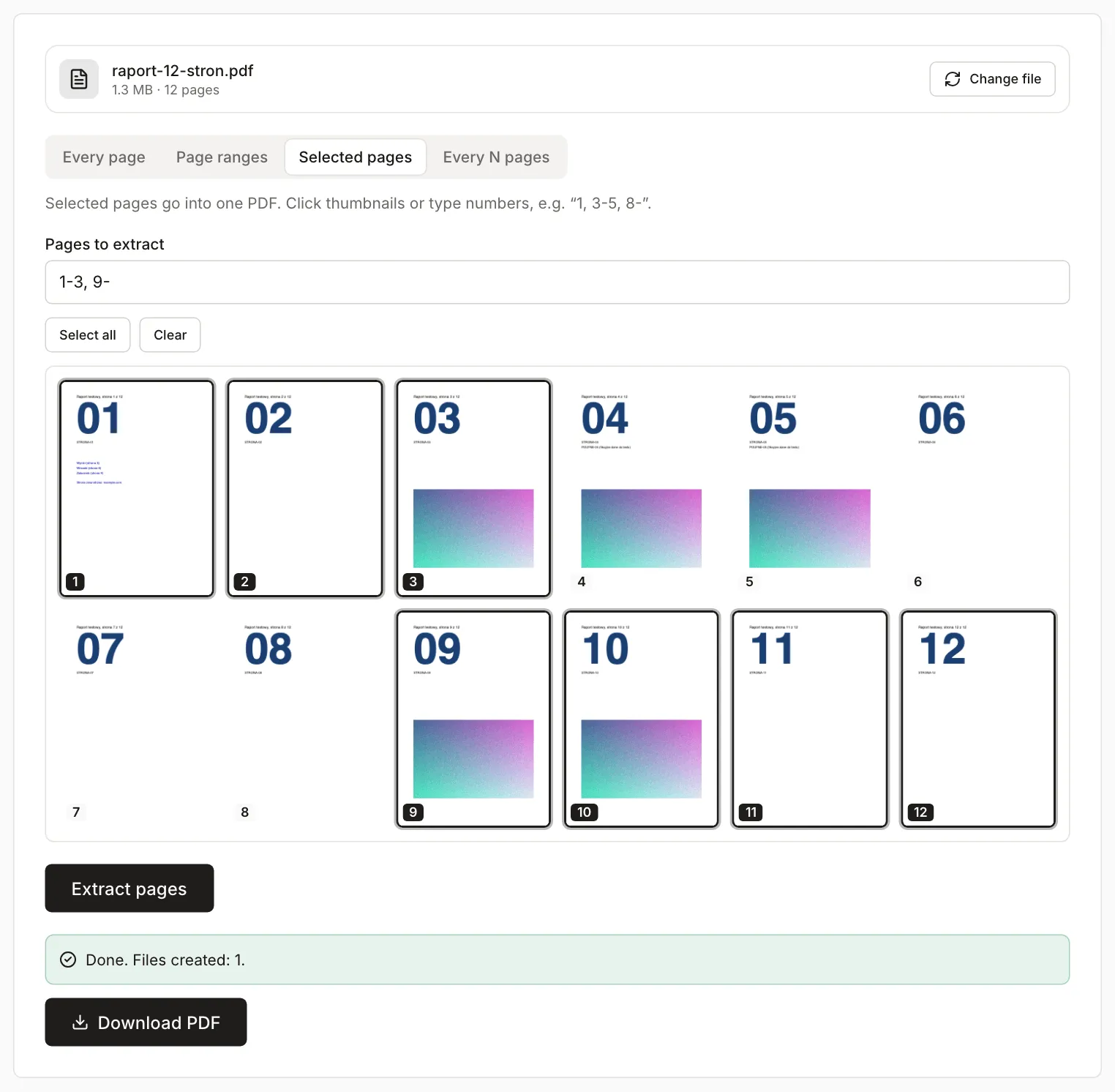
A simple rule: when it is easier to name what stays (“pages 1-3 and everything from 9”), use “Selected pages”. When it is easier to name what goes (“everything except 4 and 5”), use Organize PDF. “Selected pages” never changes the order. It always puts pages in ascending order and merges repeated numbers, so “5, 1, 5” gives a PDF with pages 1 and 5. Use Organize PDF to reorder or duplicate.
Split PDF and Organize PDF don’t open password-protected files. They show a message that explains how to remove the protection first.
How to write page ranges
The “Ranges”, “Pages to extract” and “Delete pages (positions)” fields read the same notation:
1-3is pages 1 to 3, and5is a single page.8-means page 8 to the end of the document, and-3means the start up to page 3.- A comma or a semicolon separates items. In “Page ranges” mode each item becomes its own file. In “Selected pages” mode everything goes into one file.
- A range that runs past the end is trimmed without warning: in a 12-page file
5-20gives pages 5-12. If the whole range is outside the document (13-14), the tool shows an error. - A reversed range (
3-1) and zero (0-2) are errors.
Spaces around the hyphen are fine: 1 - 3 means pages 1-3, the same as 1-3. A space without a hyphen separates items (5 3 gives pages 3 and 5). A lone hyphen - means the whole document, so before you save, check the plan under the field (number of files and their pages) or the “Pages in result” line.
In “Delete pages (positions)” the numbers refer to the current order of the cards on screen, not to the original page numbers. After you reverse the order, “1” means the card that was the last page.
Example: a 12-page report
The test file raport-12-stron.pdf was generated by a script. It’s a synthetic document with made-up content, 1327 KB in size (all sizes below are in KB of 1000 bytes). It has 12 A4 pages with a large page number. Pages 3, 4, 5, 9 and 10 carry a noise image (about 263 KB each) and the other pages are text only. Pages 4 and 5 also have a line marked “POUFNE” (confidential). Page 1 has a table of contents with three links to pages 3, 6 and 9, plus a link to a website. The file also has bookmarks, a title and an author.
Results from the tools, run in the browser on this file:
| Operation | Result | Size |
|---|---|---|
Ranges 1-3, 4-8, 9- |
3 files: 3, 5 and 4 pages | 265 KB, 529 KB and 529 KB (1323 KB total) |
| Every 5 pages | 3 files: 5, 5 and 2 pages | 793 KB, 529 KB and 1.2 KB (1323 KB total) |
| Every page | 12 files | from 0.8 KB (page 2) to 264 KB (pages with an image), 1328 KB total |
Selected pages 1-3, 9- |
1 file, 7 pages (1, 2, 3, 9, 10, 11, 12) | 793 KB |
Selected pages 4 |
1 file, 1 page | 264 KB |
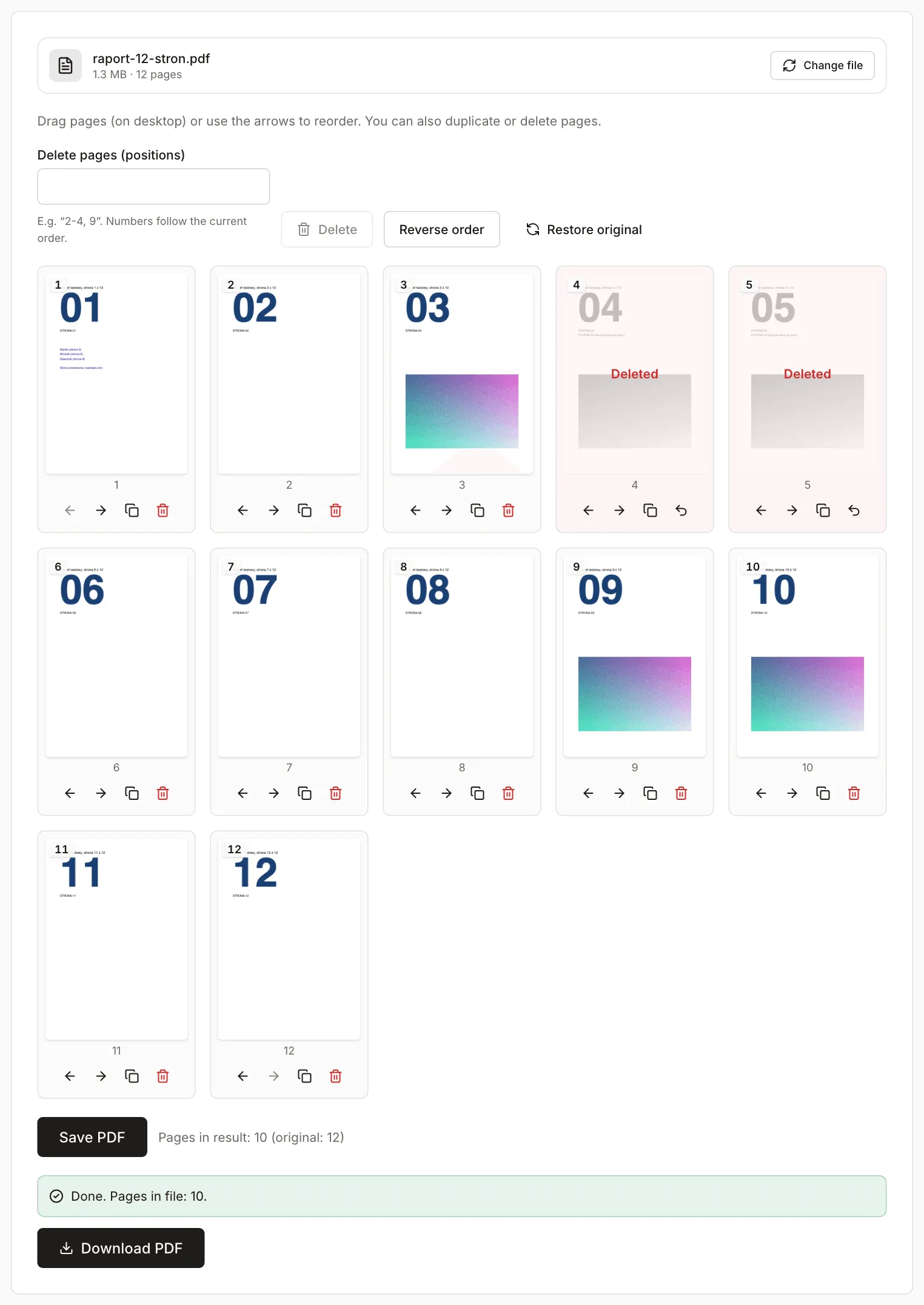
| Delete pages 4-5 | 1 file, 10 pages | 794 KB |
| Delete pages 4-5, reverse the order | 10 pages in the order 12, 11, 10, 9, 8, 7, 6, 3, 2, 1 | 794 KB |
| Page 12 moved to the front | 12 pages in the order 12, 1, 2, … 11 | 1322 KB |
Images are copied unchanged: page 4 extracted alone weighs as much as its image in the original. The page text and layout stay the same because the page isn’t rendered again. So these tools don’t shrink a file beyond dropping pages. For shrinking, use Compress PDF, covered in the email guide.
The parts of the split add up to 1323 KB, close to the original’s 1327 KB, because each page goes into the result once. The small difference is file-structure overhead. Page 1 extracted alone, with just text and a table of contents, weighs 1.1 KB.
What stays in the extracted pages
The tools copy the chosen pages into a new, empty document. We measured what carries over from the original:
| Element | In the result | How we checked |
|---|---|---|
| Text, images, page layout | Stay unchanged | Text read with pdf.js, image sizes |
| Bookmarks (the outline in the side panel) | Gone | No outline in any result |
| Title, author, subject, keywords, dates | Gone. The “Producer” field stays empty | Metadata read with pdf-lib |
| Link to a website | Stays and works | pdf.js sees the address |
| Link to another page of the same document | Removed, even when the target page stays in the result | Of the three table-of-contents links, pdf.js sees only the link to the website in the result |
| Form fields | Values stay visible, but the file no longer has a field list | In extracted pages 2 and 4 pdf.js sees the fields “imie” and “zgoda”, while pdf-lib sees zero fields |
| Digital signature | Won’t stay valid | Follows from how signatures work, see below |
In our test, Fill PDF Form found no fields in the file with the extracted form pages, although it found two in the original. If the recipient still has to fill something in, send the original, or fill the form in before you extract the pages.
We didn’t test a digital signature (qualified signature, e-ID, personal signature) on a real signed file. A signature covers the exact bytes of the original file, and every operation above writes a new file. Send a signed document whole. If you only want to add your own signature as an image, see How to sign a PDF without printing it.
Missing title and author is usually a plus if you’d rather not say who prepared the document. Missing bookmarks matters for longer documents: the recipient won’t get an outline in the side panel.
Does a deleted page really leave the file
In our test it did. The tools write a new file that contains only the chosen pages and what those pages use. Links to other pages of the document are removed when you extract or delete pages, while links to websites stay. That way a link doesn’t drag along the page it pointed to.
We checked this on the test file by scanning every object in the result, not only the visible pages:
- After deleting pages 4 and 5, the file contains neither the images from those pages nor the lines “POUFNE-04” and “POUFNE-05”. The result weighs 794 KB.
- After deleting page 3, which the table of contents on page 1 linked to, the tool showed “Pages in result: 11 (original: 12)” and the file weighs 1058 KB. That is one image (about 263 KB) less than the original, and the text “STRONA-03” isn’t in it.
- Page 1 extracted alone weighs 1.1 KB and holds only the text of that page.
For data that would be costly to leak, also check the size of the result. A text-only page weighs about 1 KB, so a result much heavier than the images on the pages you kept explain needs a closer look. We tested one file, and other documents may contain elements ours didn’t. If you want to be sure about every page, turn the pages you keep into images with PDF to JPG and put them together with JPG to PDF. An image carries no hidden objects, but the text stops being selectable and searchable. You can also hand over a single page as a plain JPG file: in our test page 4 at 150 DPI gave a 252 KB file.
Bookmarks and metadata aren’t copied, so they reveal nothing on their own.
Pages from several files
Split PDF works on one file at a time, so pages from several documents take two steps:
- In each file, extract the pages you need in “Selected pages” mode and download the results.
- In Merge PDF, load the extracted files, set their order with the arrows or by dragging, and save one document. The tool also accepts JPG and PNG photos, each on its own page.
In our test we extracted pages 2-3 of the report (265 KB) and pages 1-2 of a test annex (1.1 KB). The merged file has 4 pages in the order report 2, report 3, annex 1, annex 2, and weighs 265 KB. When merging, the tool sets the document producer to “narzedzia - merge-pdf”, and there is still no title or author.
Page order in the result follows the order of files in the list. To rearrange single pages afterwards, open the result in Organize PDF.
When these tools won’t do
- The file has an electronic signature and the recipient is meant to verify it. Send the original.
- The document contains a form the recipient has to fill in. The fields won’t carry over to the extracted pages as a form.
- You want to hide data on a page you keep. The tools remove whole pages, not parts of them. Cropping a page doesn’t remove content outside the frame either, as the guide How to crop white margins from a PDF explains.
- The file is password-protected. Split PDF and Organize PDF reject it.
- The file is still too big. Dropping pages only removes what was on them. The next steps are in the guide on preparing a PDF to send by email.