How to remove personal data from a contract before using ChatGPT
A tenancy agreement, a letter or a client email contains details an AI assistant does not need to do its job. Swap them for placeholders, paste only the text into the chat and put the real data back into the reply. The original stays on your device.
- HNarzędzia editorial team
- Published:
Is it safe to paste a contract into ChatGPT? It depends on whose data is in the document, what your employer’s or client’s rules say and how the service is set up. You can reduce the risk, though. To summarise a lease or tidy up a letter, an AI assistant does not need the tenant’s PESEL (the Polish national ID number), bank account or surname.
What happens to text you paste into a chat
Pasted text goes to the provider’s servers and is processed there. A contract or letter usually contains other people’s data: the other party, an employee, a flatmate, a client. You rarely have their permission to hand that data to an outside service.
What the provider does with a conversation depends on the service, the plan and your settings. According to OpenAI’s help centre (checked in October 2026), ChatGPT has a setting called “Improve the model for everyone” under Settings, Data controls. With it switched off, new conversations are not used to train OpenAI’s models, but they stay in your history. A temporary chat does not appear in your history and is not used to improve the models, but it may be kept for up to 30 days for safety reasons. ChatGPT Business, Enterprise and Edu workspaces are not used for model training by default. The details are on the page Data controls in ChatGPT. Other services have different settings, so check the privacy settings of the one you use.
Pseudonymisation vs anonymisation
The GDPR (RODO in Poland) treats these two terms differently, and the difference matters for what you do with a document.
Pseudonymisation (Article 4(5)) means processing data so that it can no longer be linked to a specific person without additional information, which must be kept separately and protected. Recital 26 adds that pseudonymised data that can be linked to a person with such information is still information about an identifiable person. Data protection rules stop applying only to anonymous information, from which a person cannot be identified at all. When judging that, you look at all means reasonably likely to be used to identify someone, including cost, time and available technology. Recital 28 notes that pseudonymisation can reduce the risks for the people concerned. The full text is in the GDPR on EUR-Lex (checked in October 2026).
In practice, text with placeholders such as [PERSON_1] plus a table that says who [PERSON_1] is counts as pseudonymisation. The table is the additional information, so as long as you hold it, the data remains personal data. Anonymisation would mean removing everything that lets anyone recognise the person, including indirect clues: a job title, the name of a small company, a case number, a description of an event. This is not legal advice. If in doubt, ask your data protection officer.
How to hide the data in the tool
The example is a fictional one-page tenancy agreement in PDF, with made-up details: a landlord, a tenant, a PESEL number, a passport number, a bank account, two email addresses and three phone numbers. We show it in the tool Anonymize a Document for ChatGPT.
1. Load the document
Drop a PDF with a text layer, a Word file (.docx), TXT or Markdown, up to 50 MB. You can also paste text into the “Document text” box. The file is read in your browser.
A scan or a photo of a document contains no text, so run it through OCR PDF first. The guide Why you can’t select text in a PDF explains how to tell the difference. In PDFs with columns or tables the reading order can get mixed up.
2. Review what was found
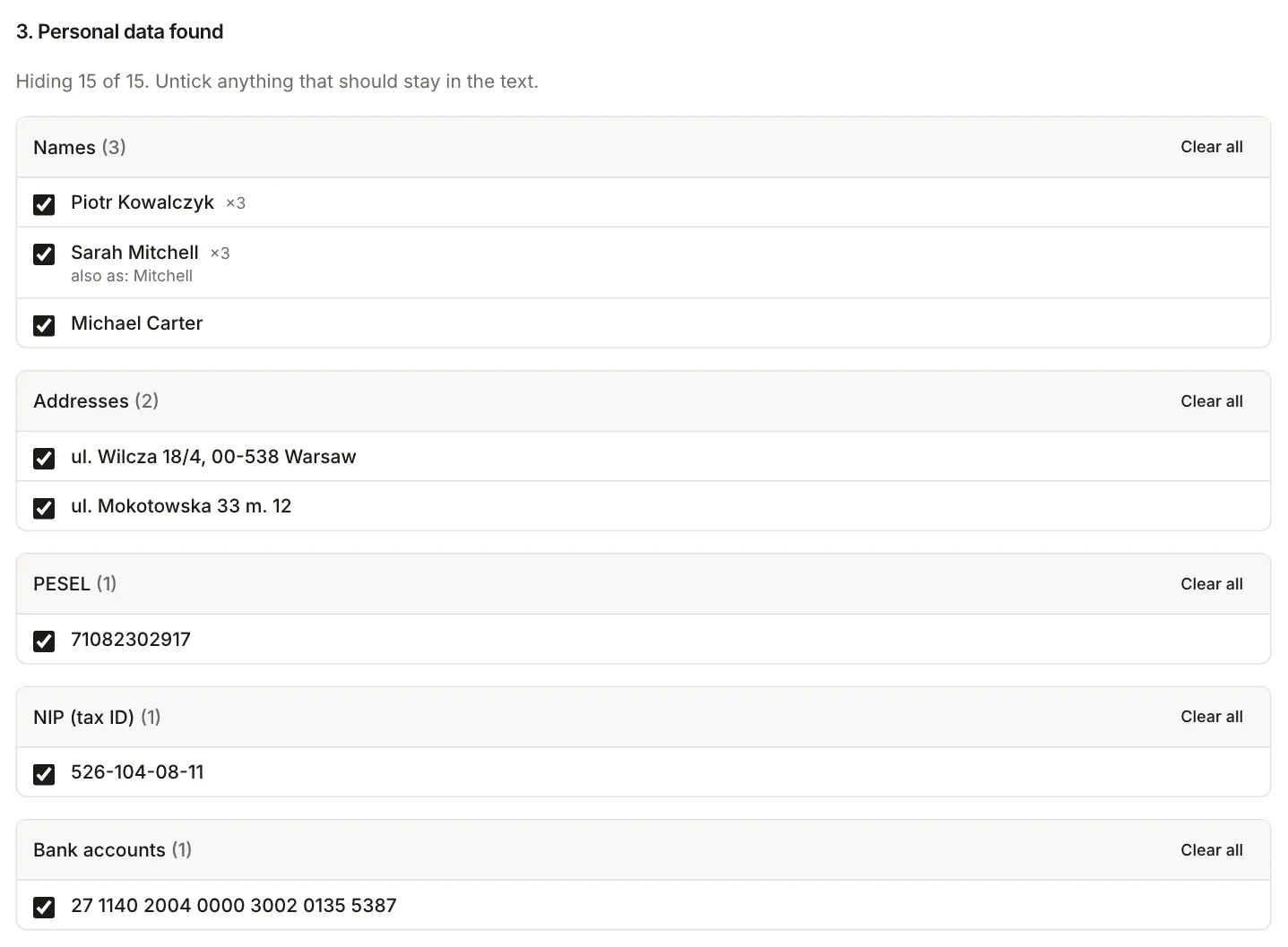
For the sample agreement the tool found 15 items: 3 names, 2 addresses, a PESEL number, a NIP (Polish tax ID), a bank account, a passport number, 2 email addresses, 3 phone numbers and a date of birth. The list groups them by type. For a person it shows how many times they appear and in which forms (“Sarah Mitchell”, “Mitchell”). All forms get the same placeholder.
Below the list is a preview of the text with coloured highlights. Clicking a highlighted fragment turns it off or on again, and so does unticking an item in the list. For the phone number without the word “tel.” next to it (“501 234 567” in brackets after a name) the tool added a “check this” label: it recognised the number only by the pattern of the digits.
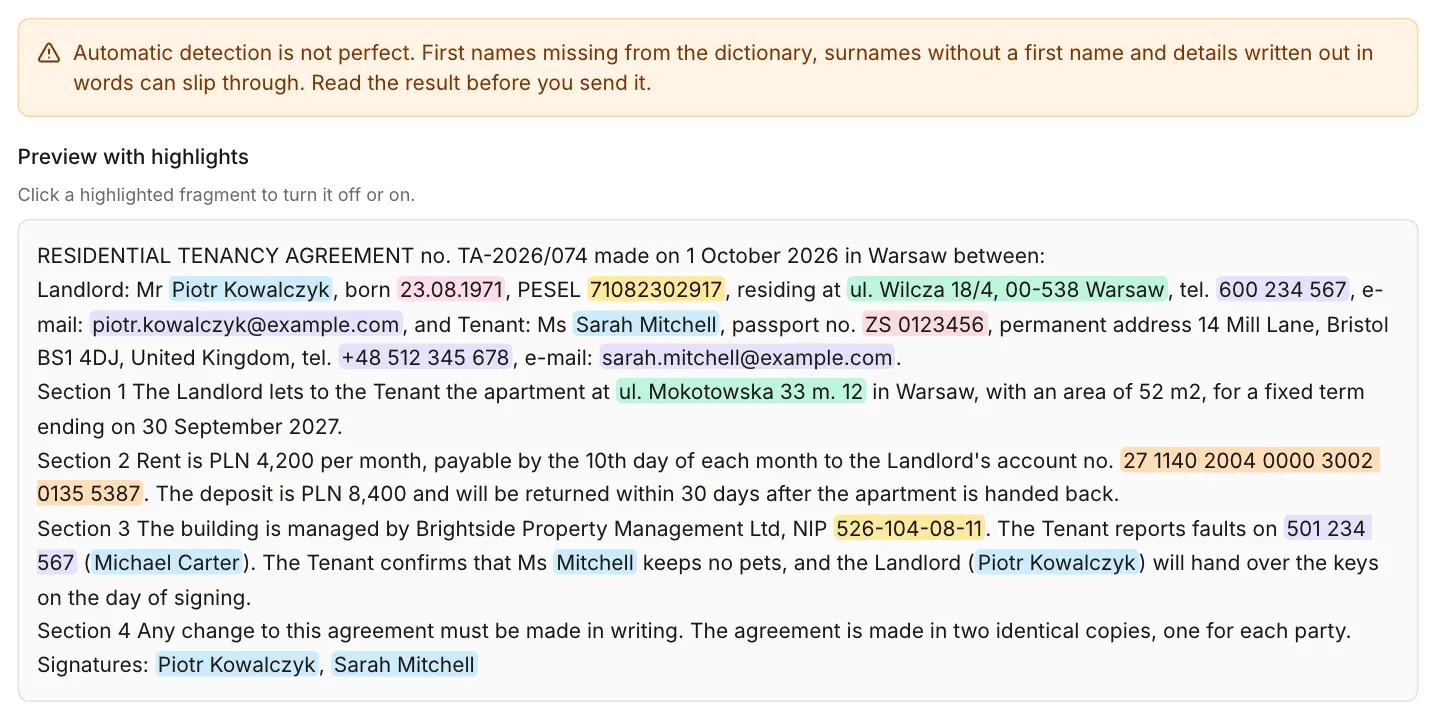
A number with a wrong checksum shows up in the list only when a label such as “PESEL:” stands next to it. It then gets an “invalid checksum” label, because it is often a typo in a real number.
3. Add your own phrases and patterns
The tool missed three things in the sample agreement: the building manager’s company name, “Brightside Property Management Ltd”, the tenant’s address in the UK, “14 Mill Lane, Bristol BS1 4DJ, United Kingdom”, and the agreement number “TA-2026/074”. We typed the first two in “Your own phrases” and described the number with the regular expression TA-\d{4}/\d{3} in the box next to it. The tool hides every occurrence of a phrase, whatever the letter case or accents. You can also select a fragment in the preview and add it with “Add selected text”.
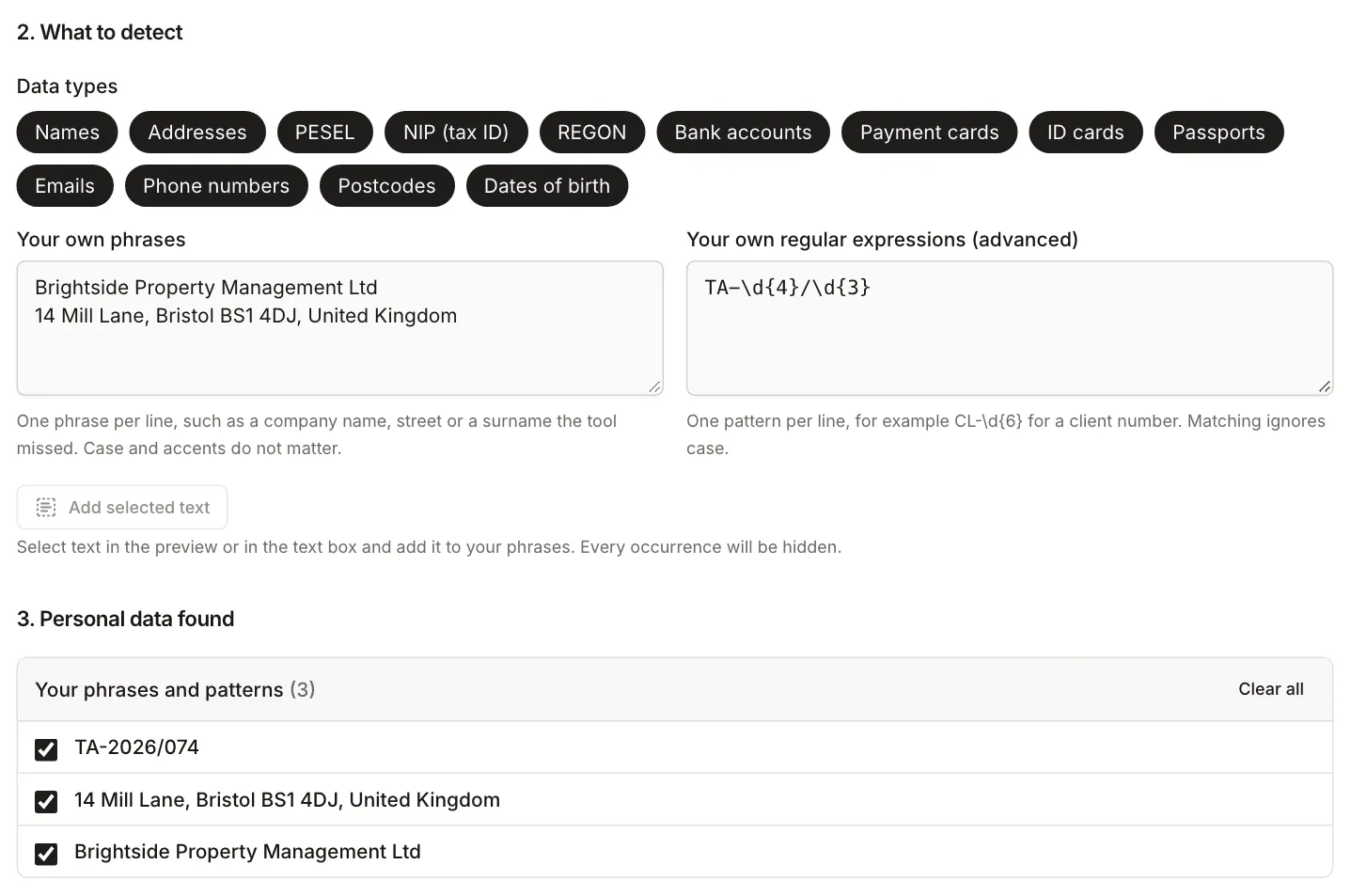
Regular expressions are for advanced users. Patterns that could run for a very long time are rejected or stopped, and the tool shows a warning.
4. Copy the text with placeholders
In “Text to send” choose “Placeholders”. Each detail gets a numbered label: [PERSON_1], [PESEL_1], [ADDRESS_1], [ACCOUNT_1], and your own phrases become [PHRASE_1]. The “Ask the AI to keep the placeholders” option adds a sentence at the top asking the AI not to change them in its reply. “Copy” copies the whole text, and you can also download it as .txt or .md.
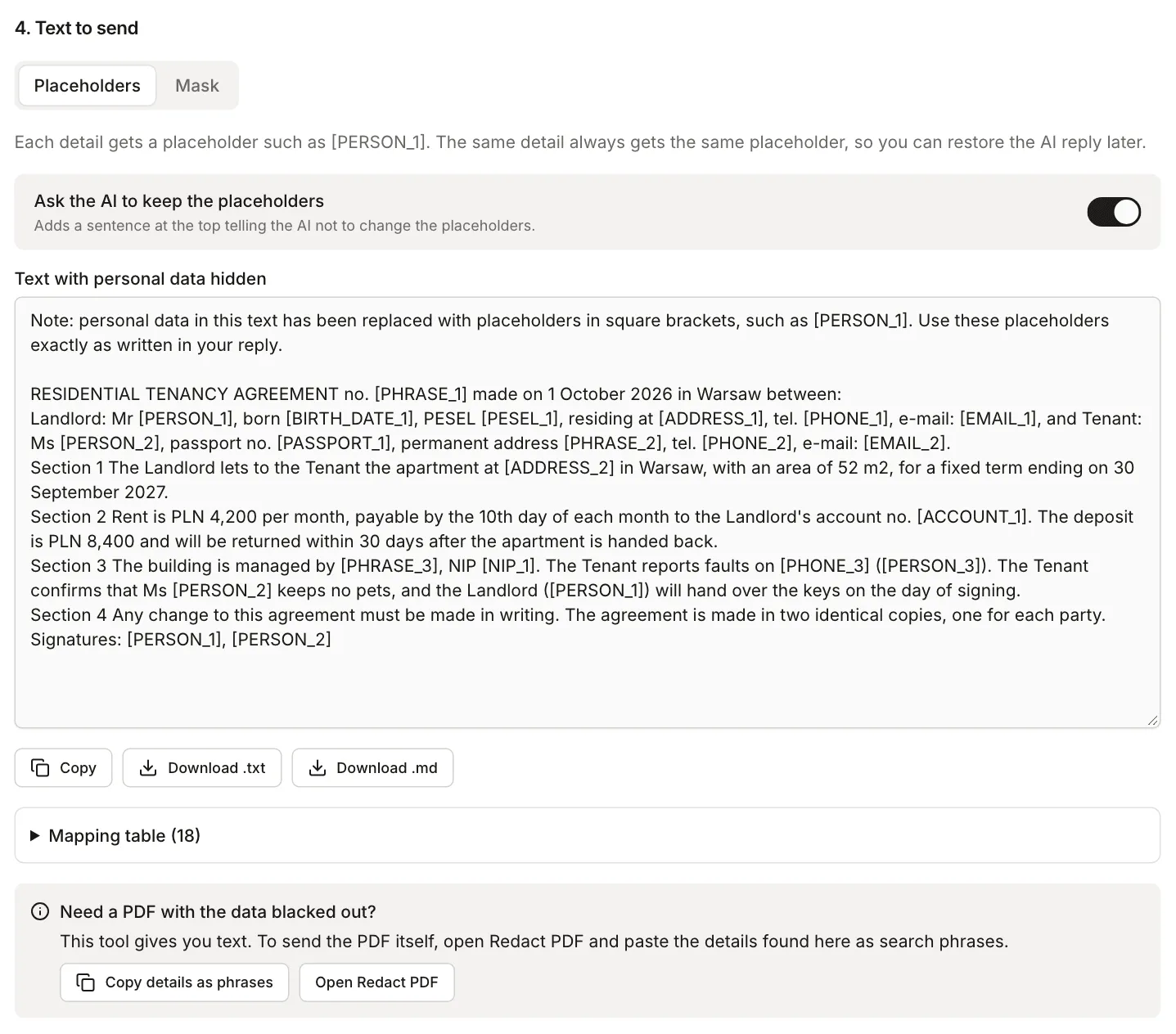
“Mask” mode replaces everything with “[REDACTED]”. Use it when the task does not need the details and you will not restore them, for example when you only want the style improved.
Paste the copied text into the chat and say what you need, for example: “Summarise the main terms of this agreement and point out what is missing.”
5. Restore the data in the reply
Paste the AI’s reply into “Paste the AI reply”. The placeholders turn back into names, numbers and addresses. We wrote the reply in the screenshot ourselves for this example, and a real one would read differently. The tool replaced 7 placeholders in it.
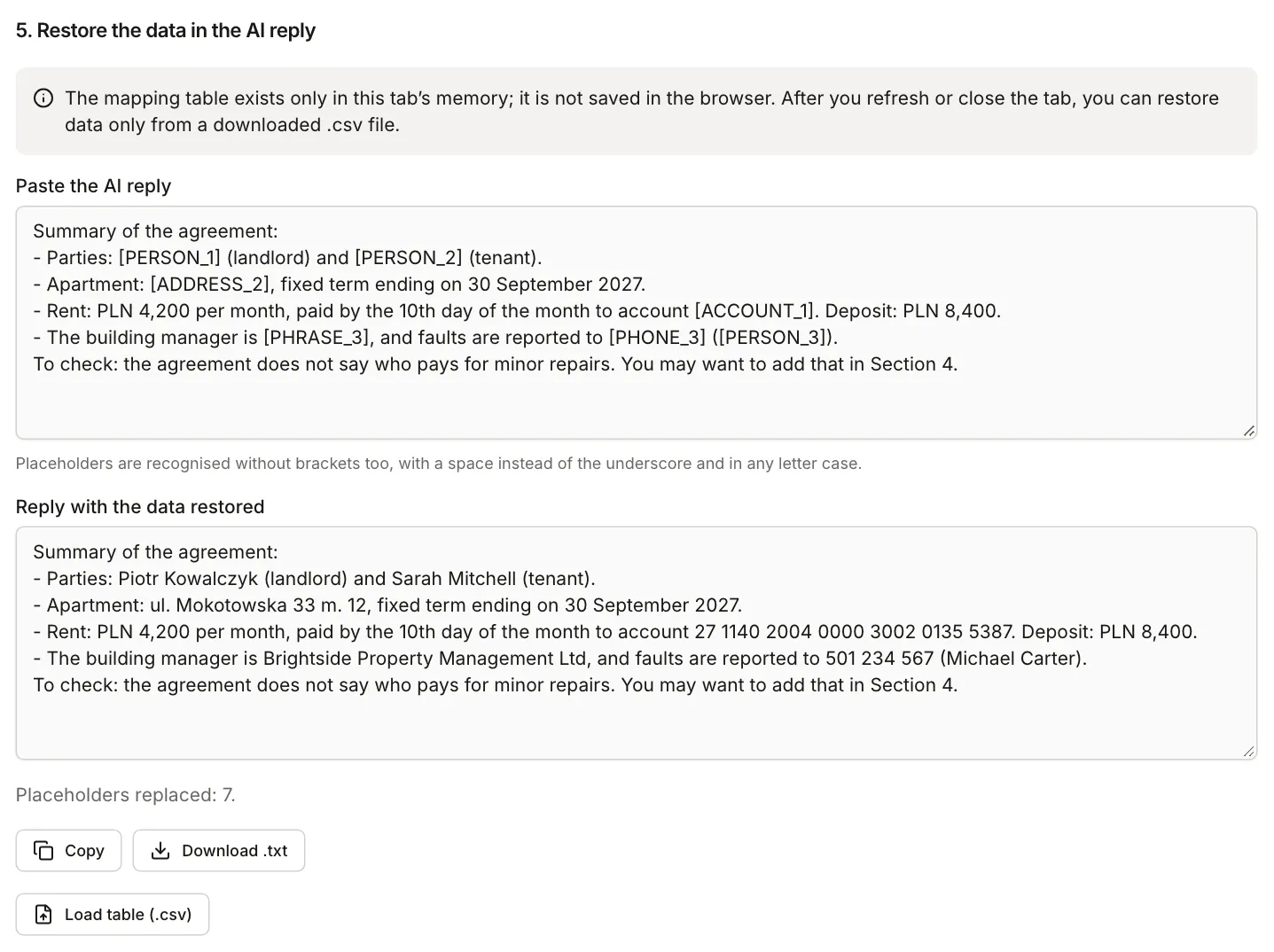
Placeholders are recognised even when the AI drops the brackets, changes the letter case or puts a space instead of the underscore. A placeholder that is not in the table (for example one the AI invented) stays in the text and shows up in a warning. If the AI inflects a placeholder or replaces it with its own word, fix that spot by hand.
The mapping table, the list of “placeholder and original”, exists only in the memory of the open tab. The tool does not save it in the browser, so it disappears when you refresh the page. For a longer conversation, download the table as a .csv file and load it later with “Load table”. The file contains the real personal data, so keep it as safe as the original document and never paste it into the chat.
What the tool will not catch
The tool looks for patterns, checks the checksums of numbers, and recognises names with a dictionary and a few rules. It does not replace reading the text. These are the usual gaps:
- first names missing from the dictionary (it holds the 1,000 most common male and 1,000 most common female first names from the Polish PESEL register, including many international names, but rarer English names may be missing), surnames that never appear next to a first name or a title, and initials such as “John S.”,
- company names, such as “Brightside Property Management Ltd” in the example,
- town names without a street address: in our agreement “Warsaw” stayed in the text,
- street addresses outside Poland, such as the Bristol address above,
- details written in lowercase, with typos or in words, for example “born on the fifth of May”,
- details that identify someone indirectly: a job title, a case number, a description of an event, a rare illness.
Read the result before you paste it into a chat and look for anything that should be gone. Add what is missing as your own phrases.
Your employer’s or client’s AI policy comes before this tool. If it forbids sending documents to outside services, hiding the data does not change that. For health data and other special categories of data, ask your data protection officer before you send anything.
When to use Redact PDF instead
The anonymisation tool gives you text to paste. If you have to send the document itself to someone else, such as a bank, an office or a business partner, use Redact PDF. It turns pages with marks into images with black boxes burned in, so no text can be copied from under them. A black box drawn in an ordinary PDF editor usually leaves the text underneath.
With a PDF loaded, the anonymisation tool shows a “Copy details as phrases” button. You paste those phrases into Redact PDF instead of typing them again. To get the plain text of a PDF without hiding anything, use PDF to Text.