Images & graphics
QR code that scans: link length, quiet zone, contrast and a test before printing
A QR code that works on screen can fail once it is printed. The usual causes are too much data, a missing quiet zone, weak contrast or a code that is too small, and you can check each of them before the print run.
- HNarzędzia editorial team
- Published:
A QR code is a grid of small squares called modules, and a scanner has to tell each one apart from its neighbors. Anything that shrinks the modules (a long link, a high error correction level, a small print) or blurs the line between light and dark (weak colors, no margin) makes the code harder to read. This guide goes through the settings of the QR code generator in the order that matters for print, with measurements on codes made in that tool.
How we measured
We generated the codes in the real generator (Chromium, downloaded PNG and SVG files) from synthetic data: example.com addresses and a made-up contact card. Three readers decoded them: the jsQR library in Node, the QR code scanner running with the browser’s native BarcodeDetector, and the same scanner with the detector switched off, so it used jsQR only. Damage (a covered center, a poster background, shrinking, blur with noise) was applied to the downloaded files with sharp. This is software decoding of files in Chromium on macOS, not a test with phone cameras and paper.
1. Shorten the content before you touch the design
The number of modules depends on how much data you encode. More characters mean a denser code, and at a fixed size on paper each module gets smaller. The table shows modules per side at error correction level M (the generator’s default) and the width of one module when the whole code image, including a 4-module margin, is 3 cm (about 1.2 in) wide:
| Content | Characters | Modules per side | Module width at 3 cm |
|---|---|---|---|
Link https://example.com/m |
21 | 25 | 0.91 mm |
| Wi-Fi with a network name and password containing special characters | 50 | 33 | 0.73 mm |
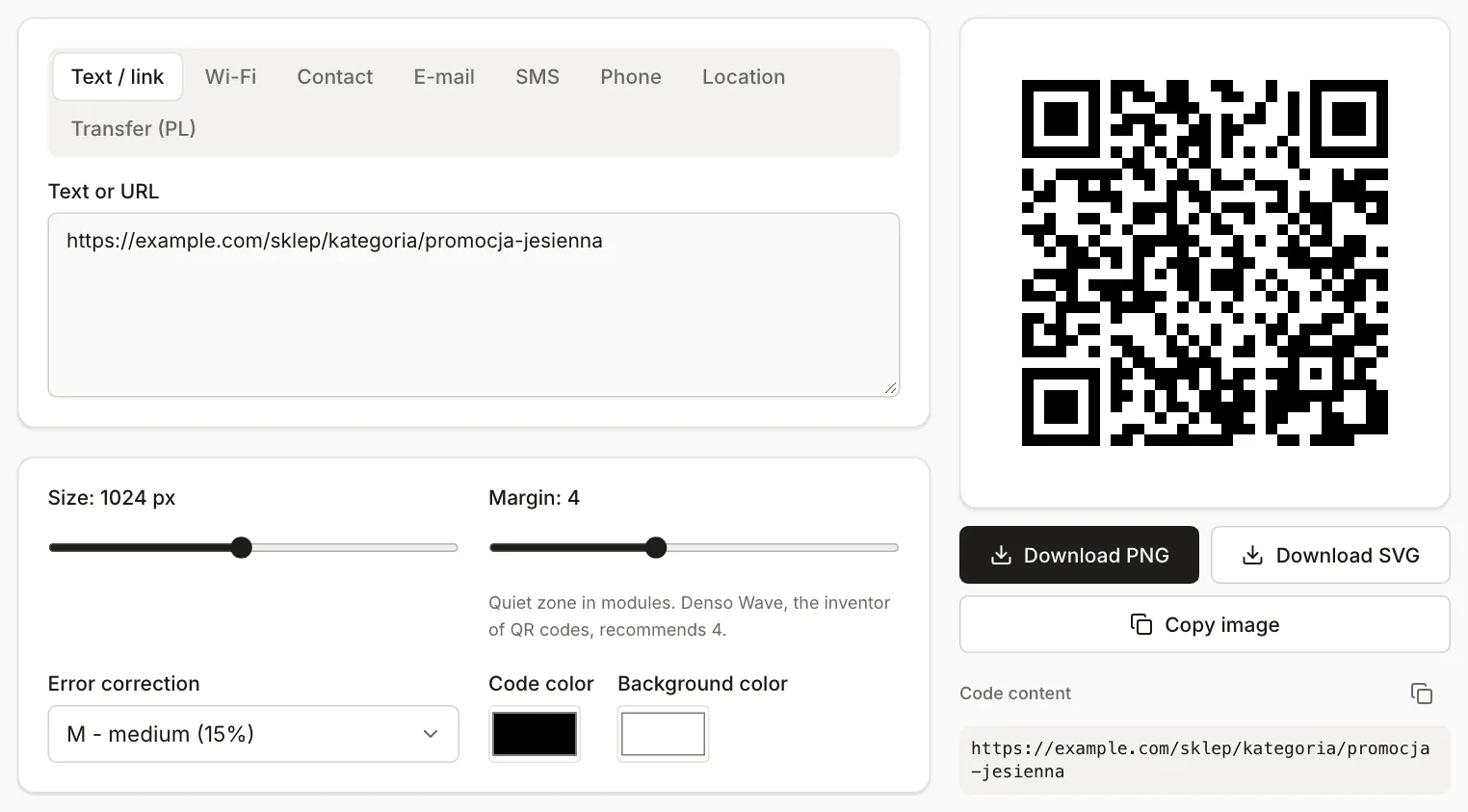
Link https://example.com/sklep/kategoria/promocja-jesienna |
53 | 33 | 0.73 mm |
The same link with UTM parameters (utm_source, utm_medium, utm_campaign) |
113 | 45 | 0.57 mm |
| vCard with name, phone and e-mail | 119 | 45 | 0.57 mm |
| vCard with company, job title, website and address | 266 | 65 | 0.41 mm |
Module width is the image width divided by the number of modules plus the margin. For the first row that is 25 + 2 × 4 = 33 modules, so 30 mm / 33 = 0.91 mm. At the same 3 cm, the modules of the full contact card are more than half as small as those of the short link.
In practice:
- Point a flyer code at a single page. Drop UTM parameters and deep paths, or set up a redirect from a short address you control.
- Codes from the generator are static. The content lives in the image, so they never expire, but you cannot change where a printed code leads. The link has to keep working for as long as the flyer is in circulation.
- Put only what someone needs at first contact on a contact card, and leave the rest to your website.
2. Error correction: a trade-off between resilience and density
The generator offers four levels: L (7%), M (15%), Q (25%) and H (30%). The percentage is the share of the code’s data words that can be restored when the code is dirty or damaged (Denso Wave, error correction, checked in October 2026). A higher level adds more redundant data, so the same text takes more modules:
| Content | L | M | Q | H |
|---|---|---|---|---|
| Link of 21 characters | 25 | 25 | 29 | 29 |
| Link of 53 characters | 29 | 33 | 37 | 41 |
| Link of 113 characters | 41 | 45 | 53 | 57 |
(modules per side)
On a clean print, L or M is enough. A higher level makes sense when the code is likely to get dirty, partly covered, or when you want to put a logo in it. The HNarzędzia generator does not add logos. You would place one yourself in a graphics program, so covering the center is your call and your risk.
How big a logo survived the test
We used the 53-character link at each level (1024 px, margin 4) and covered the center with a solid square whose side is a percentage of the code width (without the margin). The steps were 5 percentage points, and the cover was one flat square, not a real logo.
| Level | Largest square read by all three readers | Share of code area | First square not read |
|---|---|---|---|
| L | 20% of the side | 4% | 25% |
| M | 30% | 9% | 35% |
| Q | 35% | 12% | 40% (native detector still read it) |
| H | 40% | 16% | 45% (native detector still read it) |
The limits came out lower than the nominal 7, 15, 25 and 30%. So make a center logo clearly smaller than the table suggests, for example 15-20% of the code width, use Q or H, and check the final file in the scanner (section 7). At L the limit was already reached at a 25% square.
3. Contrast and colors
The generator computes the contrast between the code color and the background, and shows a warning when it is below 3:1 or when both colors are identical. We measured several pairs on the 53-character link (512 px, margin 4, level M). The “degraded” file is our simulation of a poor photo: the image shrunk to 220 px, blurred, with reduced contrast and added noise.
| Code color on background | Contrast | Generator warning | Readers that decoded the file (of 3) | After degrading (of 3) |
|---|---|---|---|---|
| black on white | 21:1 | no | 3 | 3 |
navy #1e3a8a on white |
10.4:1 | no | 3 | 3 |
gray #6b7280 on white |
4.8:1 | no | 3 | 3 |
gray #9ca3af on white |
2.5:1 | yes | 2 | 3 |
light gray #d1d5db on white |
1.5:1 | yes | 1 | 1 |
red #dc2626 on green #16a34a |
1.5:1 | yes | 1 | 0 |
black on yellow #fde047 |
15.9:1 | no | 3 | 3 |
| white on black (inverted) | 21:1 | yes (inverted colors) | 3 | 3 |
Colored codes are fine as long as the code is clearly darker than the background. At 1.5:1 at most one reader decoded the file. At 2.5:1 the result depended on the reader and the scale: jsQR in Node missed the file at full size and read it after it was shrunk. A code that sits on the edge like that is not worth printing.
All three readers decoded the inverted code (light on dark), because the scanner tool tries both polarities. We did not test whether every phone and every handheld scanner does the same. The generator warns about inverted colors. Stick to a dark code on a light background.
4. The quiet zone
A code needs an empty area around it with nothing printed in it. Denso Wave, the inventor of the format, specifies a four-module margin on every side (Denso Wave, determining the code area, checked in October 2026), and it lists text or pictures placed too close to the code as a typical reading problem (Denso Wave, reading problems).
The generator’s “Margin” slider counts modules (0-10). It defaults to 4, the value Denso Wave recommends, so for print you can leave it as is.
In the test we put the code (53-character link, M, 512 px) on a poster with a dark background, and on a light background with black “lines of text” half a module from the edge of the code image:
| Margin | Dark background | Light background with text next to the code |
|---|---|---|
| 0 | only the native detector read it, both jsQR variants failed | all three |
| 1 | all three | all three |
| 2 | all three | all three |
| 4 | all three | all three |
The readers are more forgiving than the specification, but margin 0 on a dark background already failed. Do not count on the forgiveness of your customer’s phone. Keep the white margin as part of the image even on a dark poster, and do not crop it off in a layout program.
5. Print size and scanning distance
A scanner does not see “a code”, it sees modules, so module size matters most. Denso Wave advises printing the code as large as the space allows and giving the printer at least 4 dots per module (Denso Wave, setting the module size, checked in October 2026). At 300 dpi, 4 dots are about 0.34 mm, so the limit is usually the scanning camera, not the printer. Denso Wave’s page does not give a reading distance or a minimum code size; for cameras the limit depends on the lens and the device.
A popular rule of thumb is 10:1 (a code 1 cm wide should scan from about 10 cm away), plus a 2 × 2 cm minimum (Bitly, minimum size for a QR code, checked in October 2026). Bitly presents both figures as approximate and does not say what they are based on, so treat them as a starting point. By that rule a 3 cm code corresponds to roughly 30 cm, and a code on a poster viewed from 2 m should be about 20 cm.
The rule ignores density. A 3 cm code has 0.91 mm modules at 25 modules per side and 0.41 mm at 65 (table in section 1), and the scanner reads modules. So shorten the content first and size the code for the densest one you will really print. The final test is a scan from the distance your audience will use.
6. PNG or SVG for print
The generator downloads PNG and SVG. The “Size” slider (128-2048 px) affects only the PNG. The SVG contains just a viewBox with no width or height, so it scales to the frame in your layout program. For the same code (53-character link, margin 4) the SVG was 1,976 B and the 512 px PNG was 9,386 B.
- The SVG rendered at 200 and 1200 px had 0% pixels in intermediate shades of gray, and all three readers decoded it.
- The 128 px PNG stretched to 1200 px had 16% gray pixels, which means soft module edges. All three readers still decoded it, but the edges are blurred and the SVG has none.
- Shrinking a PNG in a graphics program did worse. At 1.25 pixels per module (a 51 px image) no reader decoded it, and at 1.5 pixels (62 px) only the native detector did. From 2 pixels per module up, all three readers worked, and 1 pixel per module worked only because the image had exactly as many pixels as modules. Denso Wave also warns that enlarging or shrinking a code in an image tool distorts the modules (Denso Wave, reading problems).
So use the SVG for print, and when a program insists on a raster, download a PNG at the final size from the generator instead of scaling it in an editor. 3 cm at 300 dpi is about 354 px, so a 512 px PNG leaves room. If you need an exact PNG width, convert the SVG in SVG to PNG and set “Width (px)” to a multiple of the module count including the margin. For a code with a 41 × 41 viewBox that could be 820 px, which is 20 pixels per module.
7. Test before printing
-
Generate the code with the final content, margin 4 and the error correction level that fits the job.
-
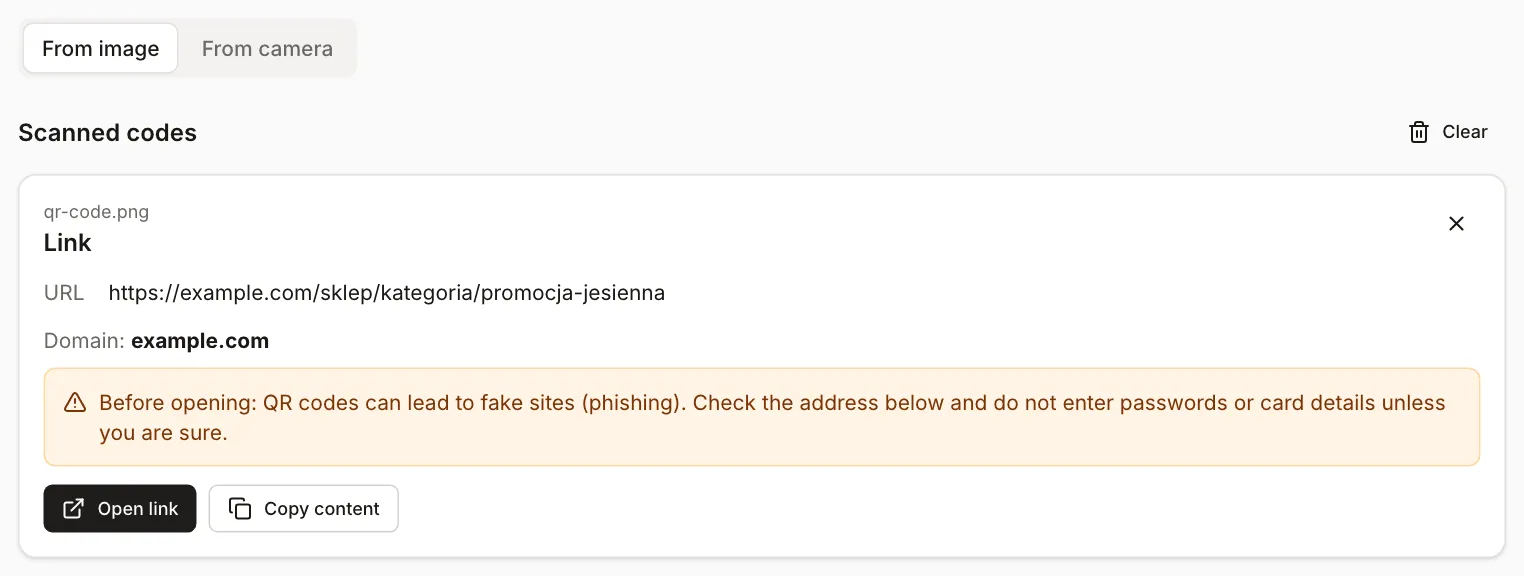
Download the file and load it in the QR code scanner (“From image” tab). The scanner shows what is in the code and, for a link, the domain. Compare the text character by character with what you intended.
-
Print a sample on the same printer and paper at the final size. Scan it with at least two phones, from the distance at which it will be read on the flyer or poster, in the lighting of the real place. Also check whether printing changed the contrast, for example whether the light areas turned gray from the paper color.
-
Open the address from the code on a phone that is not on your office Wi-Fi and check that the page loads.
The scanner’s result depends on the browser: if it has a native detector the tool uses it, otherwise it reads with the jsQR library at several scales. In our test the native detector decoded several files that jsQR did not: margin 0 on a dark background, 1.5:1 contrast and a code shrunk to 1.5 pixels per module. If a file decodes in only one browser, simplify it (shorter link, bigger margin, more contrast) and test again.
8. Wi-Fi and contact cards: special characters
The generator builds valid text for Wi-Fi and vCard by putting a backslash before special characters: \ ; , : " in Wi-Fi, and \ ; , plus line breaks in vCard. We tested it with data containing them:
- The network “Kawiarnia;Rynek:2” with the password
ha;sło,"1\2ends up in the code asWIFI:T:WPA;S:Kawiarnia\;Rynek\:2;P:ha\;sło\,\"1\\2;;. The scanner showed the name and password exactly as we typed them. - The company “Pracownia Nowak; Wspólnicy, Sp. z o.o.” goes into the
ORGfield asPracownia Nowak\; Wspólnicy\, Sp. z o.o.. The scanner read it back with the semicolon and comma, and the Polish letters in the address (Łódź, Przykładowa) came out right too.
Without the escape, a semicolon in the ORG field would be read as a separator between parts of the field, so do not build such text by hand in the “Text or URL” field. The contact card with all fields is 266 characters and 65 modules per side. At the slider’s smallest size (128 px, about 1.75 pixels per module) both variants of the tool’s scanner decoded it, but a single jsQR pass in Node did not. For a dense contact card, use a larger file.
What the generator will not do
- It does not add a logo or change the module shape.
- It makes static codes: no scan counts and no changing the destination after printing.
- The scanner test reads a file, not a phone camera image. It does not replace a printed trial.
- EAN barcodes for products in shops are a different format. See EAN barcode for your product.