Video
How to reduce a video file size for sending
A video that is too big for an email, a form or a chat app? Size comes from bitrate and duration, so cut the length first, then lower the resolution and set a target size.
- HNarzędzia editorial team
- Published:
A video’s size is roughly (video bitrate + audio bitrate) x duration / 8. Compression lowers the bitrate, and trimming lowers the duration. Resolution is not in the formula, but it sets how much bitrate you need before the picture starts to look bad.
What takes up the space
The example I measured below is a synthetic MP4 test file (1920x1080, 30 fps, 40 s) with about 10.1 Mbps of video and 128 kbps AAC audio. It weighs 51.2 MB.
| Part | How to estimate it | In the test file |
|---|---|---|
| Video | bitrate x duration / 8 | about 50.5 MB |
| Audio | bitrate x duration / 8 | 0.64 MB (128 kbps for 40 s) |
| Time | each second adds the total bitrate / 8 | 10.2 Mbps, about 1.3 MB per second |
The picture is nearly all of the file, the audio is almost nothing, and every second of footage is about 1.3 MB here. Resolution works indirectly: 1080p has 2.25 times as many pixels as 720p, so the same visual quality needs a proportionally higher bitrate.
Check the limit first
The limit gives you the target in MB. Services change their limits, so take them from the service’s own help page:
- Gmail: for personal accounts the attachment limit is 25 MB, and Gmail replaces a larger file with a Google Drive link (checked October 2026).
- Outlook.com: the attachment limit is 25 MB, and larger files can be shared from OneDrive (checked October 2026).
- WhatsApp: the maximum size of a video sent or forwarded is 64 MB on all platforms. The same page also gives a default limit of 100 MB and 720p on a fast connection (64 MB and 480p on a slow one), so aim below 64 MB to be safe. A larger video can be sent as a document, up to 2 GB (checked October 2026).
- Discord: without Nitro a file can be up to 20 MB (since August 2026, previously 10 MB), with Nitro Basic up to 50 MB, with Nitro up to 1 GB. Discord checks the size before its own compression, and some accounts are testing different limits (checked October 2026).
- Other messaging apps and upload forms: the limit is in the service’s help or in the error message you get on upload, and it can depend on the plan.
Work and school accounts have limits set by an administrator. With email, leave some margin: attachments are encoded inside the message (Base64 adds roughly a third), and the recipient’s server may have a smaller limit than yours. The video tools count 1 MB as 1,000,000 bytes, the same as the target you type into the compressor. WhatsApp and Discord do not say whether their MB is 1,000,000 or 1,048,576 bytes, so leave a few percent of margin for those limits too.
The order to work in
1. Trim the video
Shortening is the cheapest step because it does not degrade what remains. In Trim video you type the start and end or set them on the slider, and the result keeps the original format. In the test, a 5-25 s cut from the 40 s file came out at 20.0 s and 26.8 MB, with video at about 10.0 Mbps, close to the original. At a similar bitrate, half the duration means roughly half the size.
Trim before compressing, because the bitrate for a target size is calculated from the duration: a shorter video gets more bitrate under the same limit.
2. Remove the audio only if you do not need it
Remove audio from video drops the audio track and, when possible, copies the picture without re-encoding (in the test the video bitrate stayed the same). The file went from 51,182,209 to 50,512,233 bytes, a saving of 0.67 MB (1.3%). For a video with someone talking this step makes no sense. For a screen recording with no narration it costs a click, but do not expect much.
3. Lower the resolution
In the Video compressor the “Maximum resolution” field offers 1080p, 720p, 480p and 360p. The limit applies to the shorter side, so a vertical 1080x1920 video counts as 1080p. The tool never upscales and rounds dimensions to even numbers. For a video watched on a phone, 720p is usually enough, and at the same target size it leaves more bitrate for each pixel.
4. Pick a compression level or a target size
The compressor has two modes:
- “Quality preset”: Light, Balanced and Strong. Video bitrate comes from the pixel count (0.1, 0.06 and 0.035 bits per pixel per frame at 30 fps), and audio gets 128 kbps (96 kbps for Strong). The final size depends on the footage.
- “Target size”: you enter MB, and the tool calculates the bitrate as MB x 8,000,000 / duration x 0.96 - audio bitrate. Audio gets up to 128 kbps but no more than about 15% of the budget (32 kbps minimum). This mode fits a hard limit because you give the number directly.
You can also work out the video bitrate yourself in the Video bitrate calculator: enter the duration, the size and the audio bitrate, and it shows how much video fits in the file. The compressor subtracts another 4% for container overhead, so its result is slightly lower than the calculator’s.
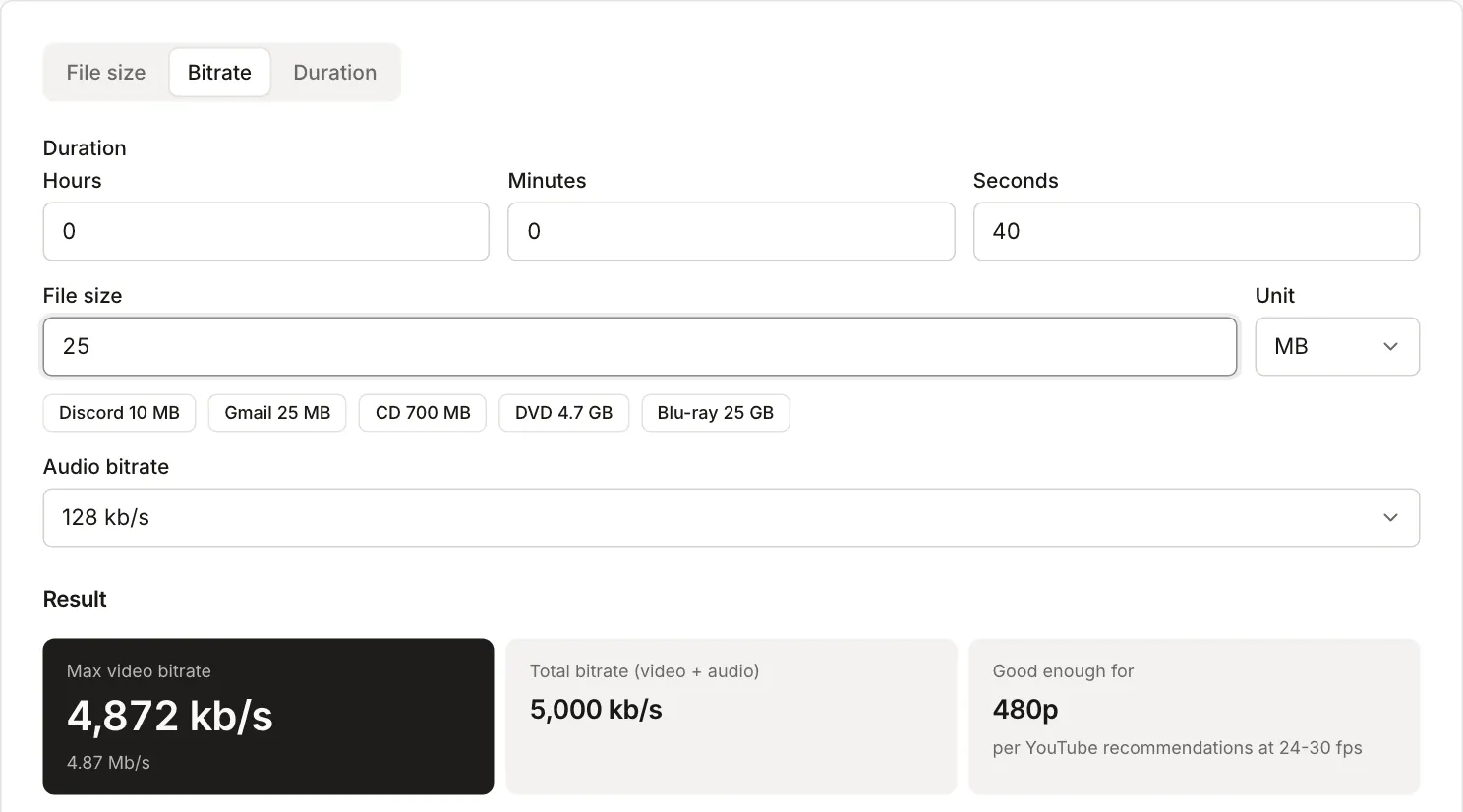
For 40 s, 25 MB and 128 kbps audio the calculator gives 4872 kbps for video (5000 kbps in total). That is about half the bitrate of the test file.
Example on a test file
The file is a synthetic test video (a test pattern with added noise, not camera footage): 1920x1080, 30 fps, 40 s, 51.2 MB. The script that generates it is in the repository (scripts/guide-fixtures/reduce-video-file-size.mjs). Every result comes from the tools running in a browser. Sizes are as the tool shows them (1 MB is 1,000,000 bytes). Noisy footage is harder to compress than a calm scene, so ordinary recordings may do better, but I did not test that.
Compression levels at the original resolution and at lower resolutions:
| Setting | Resolution | Size |
|---|---|---|
| Light | 1920x1080 | 31.5 MB |
| Balanced | 1920x1080 | 19.2 MB |
| Strong | 1920x1080 | 12.5 MB |
| Balanced | 1280x720 | 8.9 MB |
| Strong | 1280x720 | 5.3 MB |
| Strong | 854x480 | 2.6 MB |
Target size:
| Target | Setting | Result |
|---|---|---|
| 25 MB | whole video, 1080p | 23.9 MB, video 4.7 Mbps |
| 10 MB | whole video, 1080p | 12.3 MB, target missed |
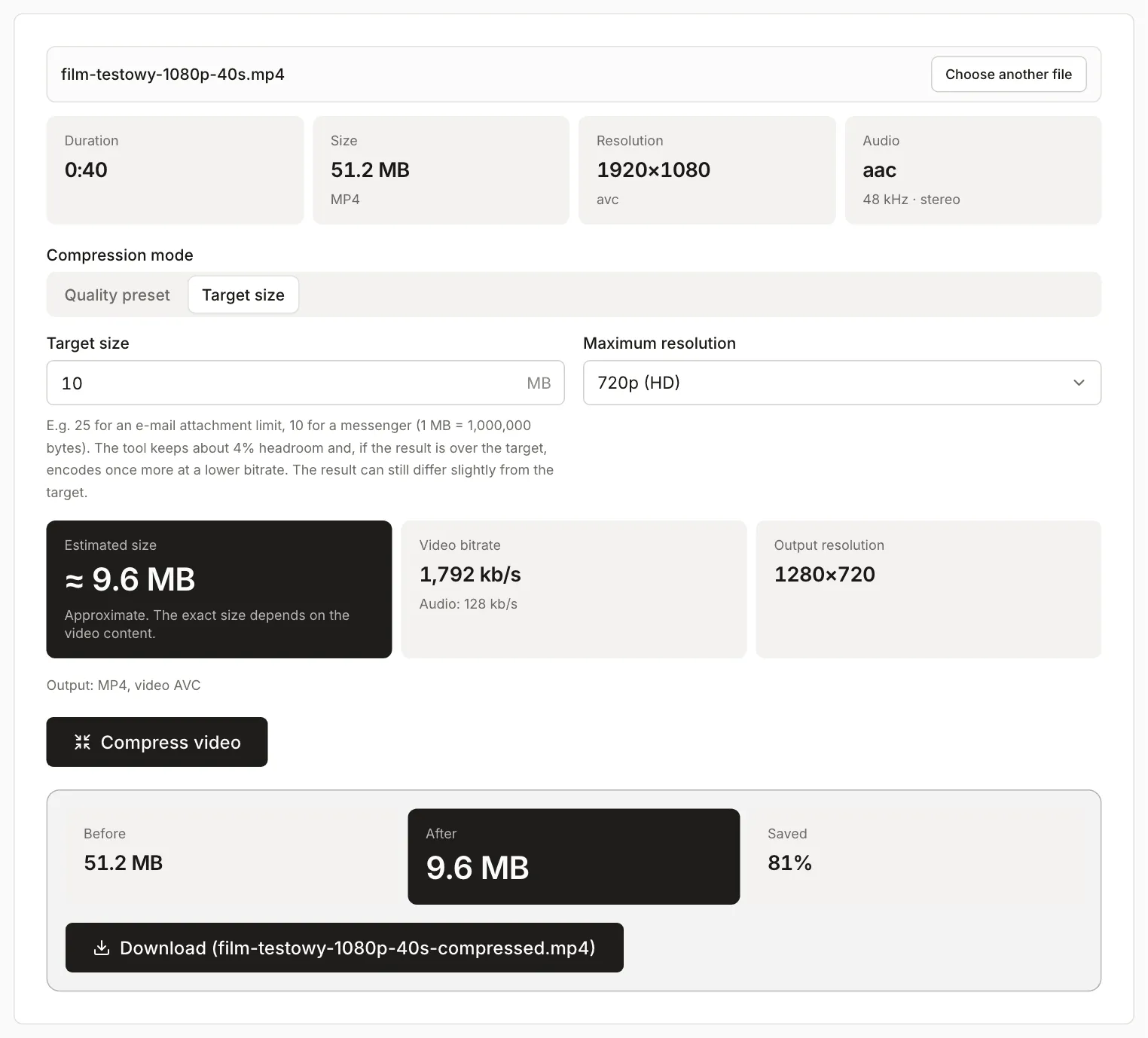
| 10 MB | whole video, 720p | 9.6 MB |
| 10 MB | whole video, 480p | 9.6 MB |
| 10 MB | trimmed to 20 s, 1080p | 9.6 MB |
What this file shows:
- One step was enough for 25 MB: a 25 MB target at the original resolution gave 23.9 MB.
- For 10 MB at 1080p the tool calculated 1792 kbps for video, and the encoder produced about 2.3 Mbps: 12.3 MB, 23% over the target. After an overshoot the compressor encodes the video a second time at a lower bitrate, but here it did not help: the result was byte for byte the same. A 5 MB target at 1080p gave 11.9 MB, so the encoder in this browser did not go below roughly 2.2-2.3 Mbps on such noisy footage. A target size is a goal, not a guarantee. At such a low bitrate per pixel the compressor warns before you start that this is very little data for the resolution, and if the result overshoots, it shows a notice with the file size and the target. Only 720p (and 480p) or halving the duration got it under 10 MB. A different browser or device, with a different encoder, may behave differently.
- Against the limits listed above: 23.9 MB from the 25 MB target fits Gmail, Outlook and WhatsApp (64 MB) but not free Discord (20 MB). Every result from the 10 MB targets fits under 20 MB, including the one that missed its target (12.3 MB).
- Shorter footage gets more bitrate under the same target: the 20 s clip at 1080p had about 3.7 Mbps for video under a 10 MB limit instead of 1.8 Mbps.
Below is the compressor with the settings from one of those rows: 10 MB target, 720p, the 51.2 MB test file.
What about quality
Each compression encodes the video again, so always start from the original and not from a previous result. A bitrate that is too low shows first in busy, detailed scenes and in gradients: the picture turns blocky. In target-size mode the compressor warns when the video bitrate falls below 150 kbps, and when the target is larger than the original it tells you the file will not shrink. Watch the result in the preview before you send it, especially subtitles, on-screen text and fast motion.
If the recipient cannot play the file, change the format in the Video converter. The compressor keeps the source format (MP4, MOV, WebM, MKV).
Browser limits
Encoding runs in your browser through WebCodecs, so the file is never uploaded, and speed depends on your device. What that means in the tool:
- Without WebCodecs the tool shows a message that processing is not possible. Use a current version of Chrome, Edge, Safari or Firefox.
- Available codecs depend on the browser. When it cannot encode the source format, the result is saved as WebM with a warning. When MP4 is created without H.264, older devices may not play it.
- The result is built in browser memory. A very large file (for example a long 4K recording) may not fit, and the tool then suggests a smaller file or a lower resolution.
- Longer videos take longer to encode. Progress is shown and you can cancel.
When this approach will not work
- The limit is very small compared with the length (say 10 MB for a quarter of an hour). Shorten the video, split it into parts, or share a link to cloud storage.
- You need the original quality or frame-accurate cuts for further editing. Send the original another way.
- You want a short looping animation: see How to make a GIF from a video.
- You only need the sound: Extract audio from a video and save it as MP3.