Audio
Extract audio from a video and save it as MP3
Only the audio track of the video ends up in the MP3, and the format, bitrate and channel count decide how big the file is and how it sounds. This guide shows how to pick them, how to cut out just a clip, and what to check about rights to the recording.
- HNarzędzia editorial team
- Published:
A video file holds picture and sound together. When you extract the audio, the tool skips the picture, reads the audio track and encodes it again in the format you pick. The video file is never uploaded. Three settings do most of the work: the format, the bitrate, and whether you save mono or stereo. The file sizes below were measured on a test video.
Check the source first
Open Video to MP3 and load your video. Before changing anything, look at the Audio box above the settings and the Source box below them. They show the codec, the sample rate and the number of channels. Phone videos usually carry AAC audio, and screen recordings made in a browser usually carry Opus.
Two things follow from that:
- The audio in a video is already compressed with loss. Saving it as MP3 adds a second lossy step, so the result cannot sound better than the original. A bitrate higher than the source only makes the file bigger.
- The tool does not show the source bitrate. If you don’t know it, keep the default 192 kb/s for music or pick 128 kb/s for speech. The interface suggests the same values.
Which format: MP3, M4A, WAV or something else
| Format | Where to pick it | When it makes sense | Size of 3 minutes (measured) |
|---|---|---|---|
| MP3 | Video to MP3 | Plays almost everywhere: phones, car stereos, upload forms, apps. If you are not sure, pick MP3. | 128 kb/s: 2.9 MB |
| M4A (AAC) | Video to MP3 | Apple devices and apps that use AAC. It is a newer codec than MP3, but the oldest players don’t know it. | 128 kb/s: 2.9 MB |
| WAV | Video to MP3 | Further editing in an audio editor. The file is uncompressed, so there is no extra loss. | 34.6 MB |
| OGG | Audio converter | Programs and games that ask for OGG. | 128 kb/s: 2.9 MB |
| FLAC | Audio converter | A lossless archive, if your browser can encode FLAC. | not measured |
Video to MP3 offers three formats: MP3, M4A and WAV. OGG and FLAC are in the audio converter, which also accepts a video file. The format list only shows what your browser can encode. The browser used for the measurements (Playwright’s Chromium) did not list FLAC, so there is no size for it here. For OGG the tool picks a codec the browser can encode, and in our measurement that was Opus.
Bitrate: a size calculation
Bitrate is the number of kilobits of audio per second. An MP3 file weighs roughly:
kb/s × seconds ÷ 8 = kilobytes (1 KB = 1000 bytes)
For 3 minutes at 128 kb/s that is 128 × 180 ÷ 8 = 2,880 KB, or 2.88 MB. The measurement gave 2,880,936 bytes, and the small difference is the file header. An hour of audio comes to 28.8 MB at 64 kb/s, 57.6 MB at 128 kb/s and 144 MB at 320 kb/s. Uncompressed stereo WAV at 48 kHz and 16 bits takes 192,000 bytes per second, about 691 MB per hour.
Mono and stereo
The “Mono (single channel)” switch changes the size only for formats without lossy compression. We measured it on the same video:
| Setting | In the tool | Bytes |
|---|---|---|
| MP3 64 kb/s, stereo | 1.4 MB | 1,440,552 |
| MP3 64 kb/s, mono | 1.4 MB | 1,440,552 |
| MP3 128 kb/s, stereo | 2.9 MB | 2,880,936 |
| MP3 128 kb/s, mono | 2.9 MB | 2,880,936 |
| WAV, stereo | 34.6 MB | 34,562,092 |
| WAV, mono | 17.3 MB | 17,281,068 |
At the same bitrate an MP3 weighs the same in mono and in stereo, because the bitrate sets the size. To get a smaller file, lower the bitrate. For WAV, mono halves the file.
Mono is enough for speech such as a lecture, a conversation or a voice message. Keep stereo for music, because mono mixes both channels into one and loses the sense of space. For speech you can try 64-96 kb/s in mono and listen to the result in the player under the download button. Save two versions and compare them by ear, since the measurements covered file size and not sound quality.
Sample rate
The default “Keep original” keeps the source value, for example 48 kHz. Switching to 44.1 kHz did not shrink the MP3: at 128 kb/s it came out at 2,881,148 bytes instead of 2,880,936. Change it only when a player or program needs a specific rate.
Example with a test file
The test file is a synthetic 3:00 MP4 video: a 1280×720 test pattern with AAC audio at 128 kb/s, stereo, 48 kHz. The sound is generated by a script (chords and a melody with light noise), so it contains no one else’s recordings. The video weighs 37.4 MB.
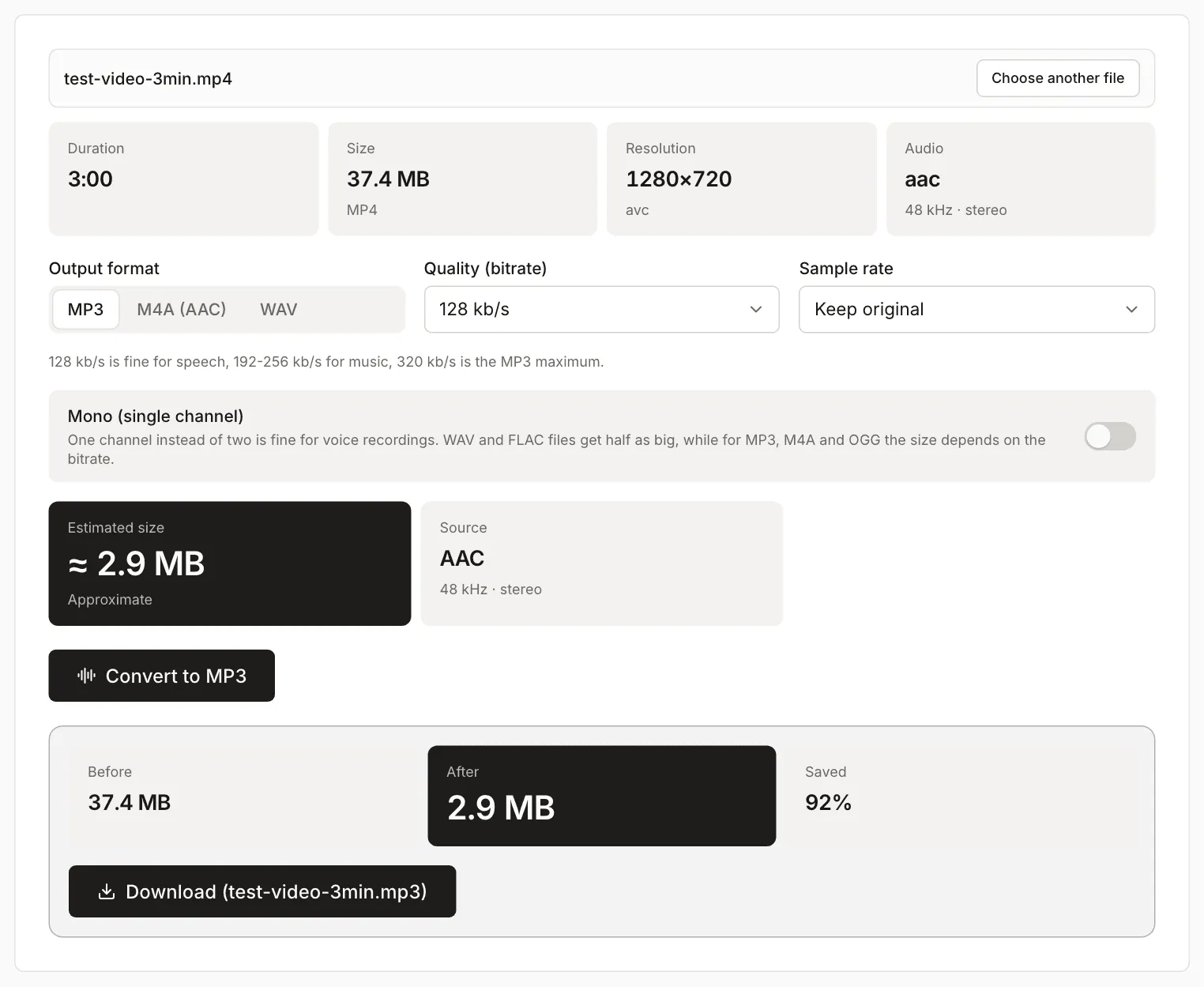
Results from Video to MP3 in Chromium, all in stereo and with the default sample rate:
| Format and setting | In the tool | Bytes |
|---|---|---|
| MP3 64 kb/s | 1.4 MB | 1,440,552 |
| MP3 128 kb/s | 2.9 MB | 2,880,936 |
| MP3 192 kb/s | 4.3 MB | 4,321,320 |
| MP3 320 kb/s | 7.2 MB | 7,202,088 |
| M4A 128 kb/s | 2.9 MB | 2,876,330 |
| M4A 192 kb/s | 4.2 MB | 4,161,230 |
| WAV | 34.6 MB | 34,562,092 |
The 37.4 MB video became a 2.9 MB MP3 at 128 kb/s, and the tool reported 92% saved. We read the sizes and the properties of the downloaded files (codec, channels, sample rate) with ffprobe. The source audio was 128 kb/s, so 192 and 320 kb/s only give bigger files here, with no improvement over the original. Higher values make sense once the source audio is better.
Just a clip instead of the whole thing
When you need a few dozen seconds (part of a lecture, one song from a concert, a ringtone), open the audio cutter. It accepts a video file as well and draws the waveform. Select the clip on the waveform, or type the times into the Start and End fields (mm:ss.s), then choose MP3 or WAV. Fade in and fade out remove the click at the edges of the clip.
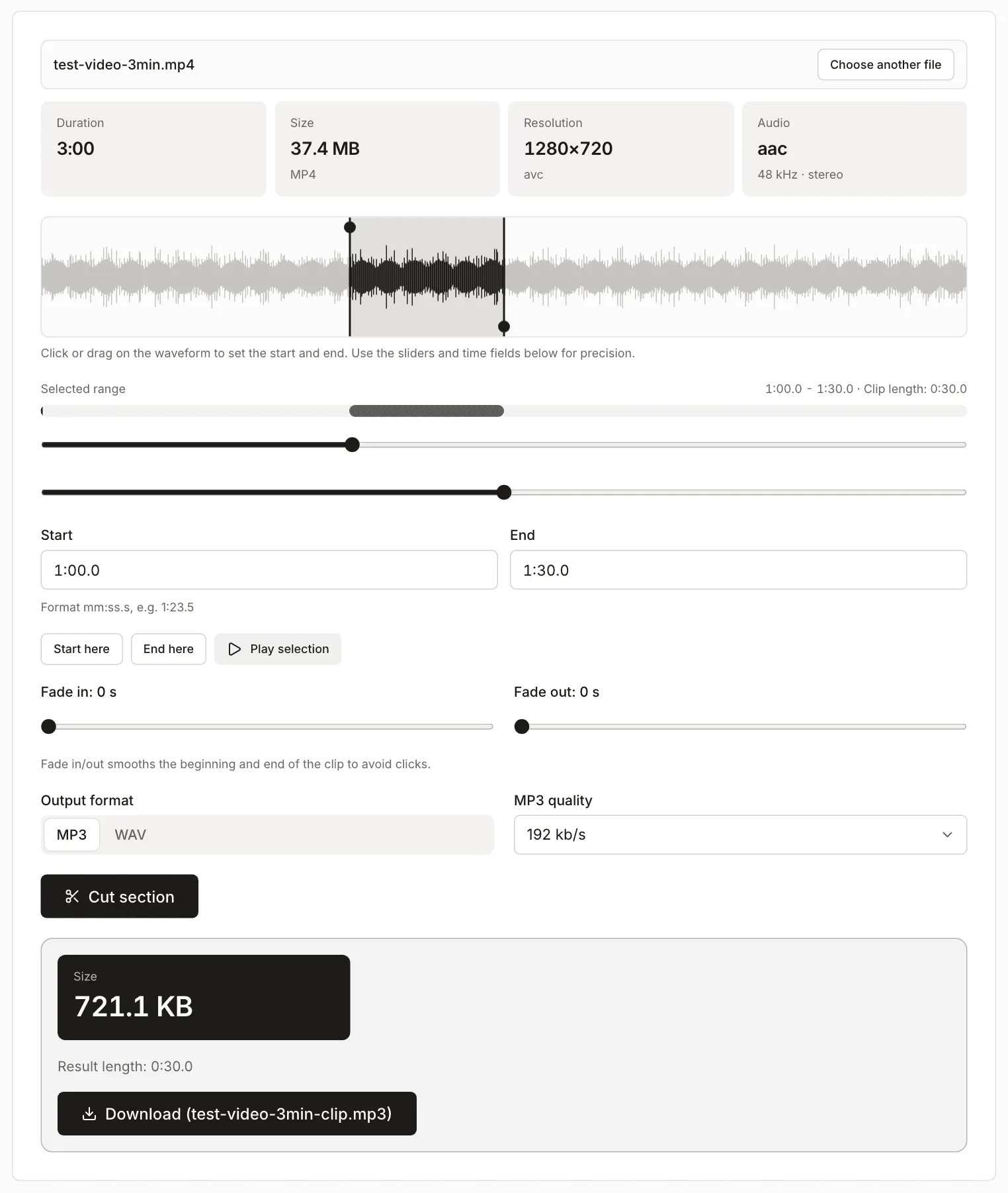
In the test we selected 1:00 to 1:30 and saved it as MP3 at 192 kb/s. The result is 30 s long and weighs 721,135 bytes, or 721.1 KB. That matches the calculation: 192 × 30 ÷ 8 = 720 KB.
A few limits of the audio cutter that come from the tool’s code:
- The result is 44.1 kHz even when the source was 48 kHz, as in our test file.
- You can save only MP3 or WAV. For M4A or OGG, run the result through the audio converter.
- The tool decodes all the audio into memory as 32-bit numbers. An hour of stereo at 44.1 kHz is 3600 × 44,100 × 2 × 4 bytes, about 1.27 GB of audio alone. On a phone or with a very long recording you may run out of memory. In that case trim the video first with Trim video or use an editor on a computer.
- Metadata and cover art are not carried over to the result.
If you extract audio from several videos and want one file, join the finished clips in Merge audio. It saves MP3 or WAV (44.1 kHz) and can add a gap or a crossfade.
Copyright and the people in the recording
The tool does not check who owns a recording. Processing in your browser only means the file stays on your device, and the rights to the material stay as they were. This is not legal advice.
- Your own recordings (a holiday video, a lecture you recorded yourself) you can save as MP3 without asking anyone about copyright, as long as nobody else’s music is playing in the background. The people audible in the recording are a separate question.
- Other people’s videos and music are protected by copyright. According to GOV.UK, UK law allows use without the owner’s permission only in specific situations, such as limited extracts for non-commercial research or private study, or recording a broadcast to watch later (GOV.UK: Exceptions to copyright, checked October 2026). Copying someone else’s film just to keep the audio is not among the exceptions listed on that page. Rules differ between countries, so check the ones that apply to you.
- The voice of an identifiable person can be personal data. The EU GDPR does not apply to processing by a natural person in the course of a purely personal or household activity (Article 2(2)(c), EUR-Lex, checked October 2026). Posting a recording online or using it at work or at school is no longer a household activity. Agree with the people recorded on how you will use it, and in an organization ask whoever handles data protection.
When something goes wrong
- “This file has no audio track.” The video has no sound. The tool showed this message for a video without an audio track.
- “Could not read the file contents…” The browser has no decoder for the codec in the file. In our test it appeared for an MKV file with AC-3 audio, and the Source box showed AC3. Try another browser or a desktop program. Converting to MP4 in the video converter only helps if the browser can read that audio.
- Multichannel audio (5.1). A video with 5.1 AAC audio produced a stereo MP3 in our test. The conversion mixes it down to two channels by itself.
- M4A, OGG or FLAC is missing from the list. The browser cannot encode that format. Pick MP3 or WAV, or use Chrome or Edge.
- A WebCodecs message. Older browsers don’t support WebCodecs, so audio and video processing won’t run. Use a current version of Chrome, Edge, Safari or Firefox.
If you need the opposite, a video without its sound, use Remove audio from video.