Video
How to record your screen without installing software
A presentation, a bug in an app, a walkthrough for a colleague: on a computer you can record the screen in the browser with nothing to install. Here is what to pick in the share dialog, when you will hear audio, how big the file gets and how to trim or shrink it afterwards.
- HNarzędzia editorial team
- Published:
Desktop browsers have screen capture built in. The page asks for permission, you choose what to share, and the Screen recorder saves the picture as a WebM or MP4 file on your disk. There is no account and nothing to install, and the recording is not uploaded anywhere. Three limits are worth knowing before you start: phones do not support it, computer audio can only be recorded in Chrome and Edge, and the file can be bigger than you expect.
What to share: a tab, a window or the whole screen
The picker is the browser’s, not the tool’s, so the browser decides which sources you can choose from. A web page can only hint at the kind of source it prefers (MDN: Using the Screen Capture API, checked October 2026). The permission covers one recording: the browser asks every time, and it shows an indicator while the screen is shared.
| Choice | What ends up in the recording | When it fits |
|---|---|---|
| Browser tab | the contents of that one tab | demoing a web page or web app, a step-by-step walkthrough |
| Window | a single application | a bug in a desktop program, a slideshow in the presentation app’s window |
| Entire screen | everything you can see | when you switch between programs while recording |
A tab or a window is enough for most jobs. The recording covers the source you picked, not the whole desktop, so it is easier to keep your mail or chat app out of the frame. Use the entire screen only when you really are showing several programs. While you record, the preview in the tool shows what goes into the file.
Audio: computer sound and microphone
The tool has two switches: “System / tab audio” (on by default) and “Microphone (voice-over)” (off by default).
- Computer audio has to be provided by the browser. According to MDN’s compatibility data (browser-compat-data, getDisplayMedia, checked October 2026), audio capture works in Chrome 74 and later (Edge uses the same engine). On Windows and ChromeOS it covers the whole system when you share the entire screen; on Linux and macOS only the audio of a tab. Firefox and Safari do not support it. You also have to tick “Share audio” in the picker. Even then the stream may have no audio track (MDN: getDisplayMedia()), and you end up with a silent video.
- The microphone needs its own permission. The tool turns on echo cancellation and noise suppression for it. If you refuse, recording carries on without a voice-over and the tool shows a message saying so.
- With both sources on, the tool mixes them into one track. In my test a recording with the microphone and computer audio had a single audio track: Opus in WebM and AAC in MP4 (read with ffprobe). Audio is set to 128 kbps, which is about 1 MB per minute.
Do a 10-second test before an important recording and play it back. It is easy to end up with no voice-over because the microphone was off, or no computer sound because “Share audio” was not ticked.
Browsers and phones
MDN’s compatibility data for getDisplayMedia() (checked October 2026): Chrome 72, Edge 79, Firefox 66 and Safari 13 and later. Chrome for Android, Firefox for Android and Safari on iOS do not have it. Recording to a file (MediaRecorder) works in Safari from version 14.1. The feature only works on HTTPS pages and after a user click (MDN).
On a phone the tool shows a message that recording is not supported. Use the screen recorder built into your phone’s operating system instead. I did not test Firefox or Safari myself, so for them I rely on MDN’s data.
File format and size
The format list in the tool depends on the browser: it offers only what the browser can record. That is WebM (VP9 or VP8) and MP4 (H.264). When both work, WebM is selected by default. MP4 plays on most devices and chat apps, and any modern browser opens WebM. That is general knowledge, not a measurement.
The “Quality” setting changes the target video bitrate: 2.5, 5 or 8 Mbps. The screen is captured at up to 30 frames per second. From the bitrate you can work out a rough size: 2.5 Mbps is about 19 MB per minute, 5 Mbps about 38 MB and 8 Mbps about 60 MB (plus audio). The real file is usually smaller, because the encoder spends only as much data as the picture needs.
Measurement: the same bitrate, three kinds of screen
The screen-sharing picker cannot be driven by an automated test, so I measured the tool in Chromium controlled by Playwright (macOS). In place of getDisplayMedia I supplied a canvas stream at 1280x720 and 30 fps with a synthetic animation. Everything after that is the tool’s own code: MediaRecorder, bitrate, format, download. Each recording lasts 10 s and has no audio. Sizes are as the tool shows them (1 MB is 1,000,000 bytes). The three sources:
- a calm screen: a form with a blinking cursor, a progress bar and an error message after 3 s,
- scrolling: a page of text scrolling without a pause,
- noise: the whole frame changes colour on every frame (an extreme case).
| Source and format | Standard (2.5 Mbps) | High (5 Mbps) | Very high (8 Mbps) |
|---|---|---|---|
| Calm screen, WebM | 598.3 KB | 581.3 KB | 591.4 KB |
| Calm screen, MP4 | 147.4 KB | 163.6 KB | 138.9 KB |
| Scrolling, WebM | 2.5 MB | 4.3 MB | 5.3 MB |
| Scrolling, MP4 | 1.6 MB | 2.6 MB | 2.6 MB |
| Noise, WebM | 4.4 MB | 4.5 MB | 5.2 MB |
| Noise, MP4 | 11.0 MB | 11.6 MB | 13.6 MB |
For comparison, the bitrate works out to 3.1 MB, 6.3 MB and 10 MB for 10 s. What the table shows:
- A calm screen weighs about 0.6 MB (WebM) or about 0.15 MB (MP4) at every quality setting. For slides and documents, High or Very high did not make the file bigger, though I did not judge image sharpness in this test.
- With scrolling, quality changes the WebM size: from 2.5 MB at Standard to 5.3 MB at Very high. In MP4 the file at High and Very high came out almost the same.
- The bitrate you set is a target, not a cap. With noise the WebM file was 4.4 MB at a 2.5 Mbps target (3.1 MB by the formula), and the MP4 file was a full 11.0 MB. A real screen is usually closer to the first two rows, but a game or a video playing in a window can get near the third.
- The same picture came out smaller as MP4 for the calm screen and bigger for noise. Encoders differ between browsers and computers, so do not treat that as a rule.
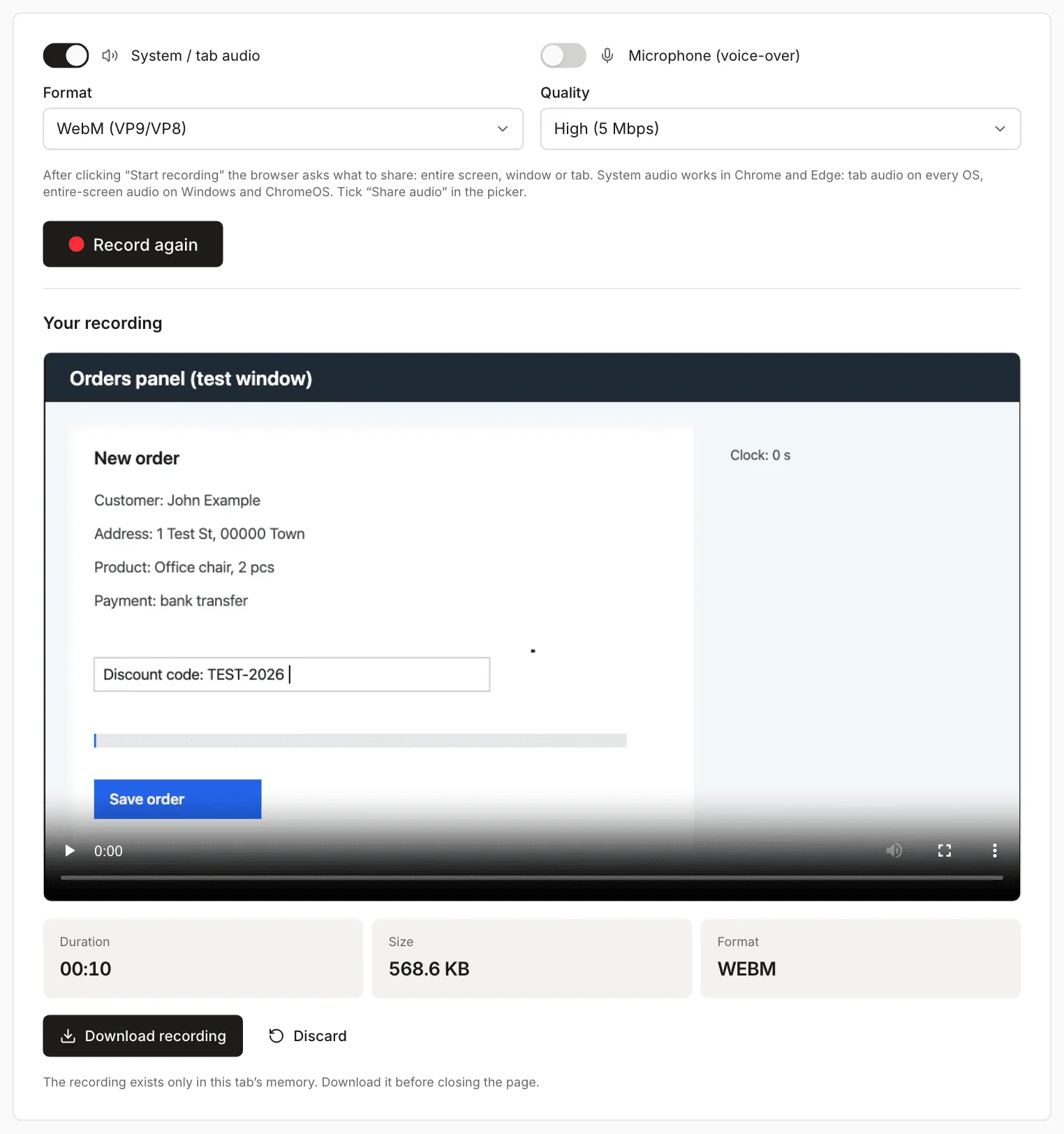
- A repeated recording differs by a few percent. The calm WebM at High weighed 581.3 KB, 627.1 KB on a second run and 568.6 KB in the screenshot above.
The scripts behind these measurements are in the repository: scripts/guide-fixtures/record-screen-without-software.mjs (the recordings) and record-screen-without-software.measure.mjs (the follow-up steps). The real getDisplayMedia can also be automated with the Chromium flag --use-fake-device-for-media-stream: the browser then supplies its own test pattern instead of a screen. A 10 s recording of that at High came to 552.5 KB as WebM and 318.3 KB as MP4.
What to do with the recording
The recording lives only in the tab’s memory until you download it, so download it before closing the page. The file is named something like screen-recording-2026-10-11-143005.webm.
After that the order is the same as for any video (How to reduce a video file size for sending):
- Trim the start and the end in Trim video. It keeps one range, so it cannot cut a section out of the middle.
- If the file is still too big, use the Video compressor.
- For a short walkthrough in a message or a document you can make a GIF in Video to GIF (more in How to make a GIF from a video).
All three tools accepted recordings from the screen recorder, including the browser’s WebM. Results from the same recordings (10 s, 1280x720, High quality):
| Step | Calm screen, WebM (581.3 KB) | Calm screen, MP4 (163.6 KB) | Scrolling, WebM (4.3 MB) | Scrolling, MP4 (2.6 MB) |
|---|---|---|---|---|
| Trim to 2-8 s (6 s) | 189.7 KB | 129.4 KB | 2.9 MB | 2.2 MB |
| Compressor, Balanced | 432.6 KB | 202.8 KB (larger than the original) | 2.7 MB | 2.0 MB |
| Compressor, Strong | 401.0 KB | 225.4 KB (larger than the original) | 1.7 MB | 1.2 MB |
| GIF, 5 s, 10 fps, 480 px | 339.5 KB | 418.5 KB | 1.7 MB | 1.7 MB |
With both compressor settings the recording stayed at 1280x720. The table shows:
- A small recording of a calm screen does not need compressing. In MP4 the compressor grew the file from 163.6 KB to 202.8 KB and said it was larger than the original. Trimming is enough.
- When a lot moves on screen, compression makes a difference: Strong took the scrolling recording from 4.3 to 1.7 MB (60% smaller) as WebM and from 2.6 to 1.2 MB (53% smaller) as MP4. Watch the result before you send it, especially to check that the text is still readable.
- A GIF of 5 s of calm screen is small, but with scrolling it is 1.7 MB, which is more than the whole 10 s as video after Strong compression (1.2-1.7 MB). A walkthrough you send as a file is usually better as video.
- Raw WebM from the browser has no duration stored (ffprobe reported none), while the MP4 does (10.05 s). After trimming or compression the WebM has one (6.0 s and 9.99 s). If a player will not let you seek in the recording, run it through one of these tools or choose MP4.
Privacy: what can end up in the recording
The biggest risk is showing something that was not meant to be in the recording: chat notifications, an open mailbox, a password manager or a tab with personal data (MDN warns about the same). What helps:
- Share a tab or a window rather than the entire screen. Turn on Do Not Disturb and close windows with private data before you click “Start recording”.
- If you have to type a password or a code mid-recording, use the “Pause” button. In my test I recorded 3 s, paused for 4 s and resumed for 3 s. The file was 6.06 s long, and the clock on the recorded screen jumped from 2 s (the frame at 2.5 s of the recording) to 8 s (the frame at 4 s). The paused stretch is not in the file, but sharing carries on, so do not leave the window you are showing.
- Trimming removes only the start and the end. If something private flashed by in the middle, record again.
- Watch the whole recording, with sound, in the preview before you send the file.
When this tool will not do
- On a phone: use the system’s screen recorder.
- When you need the whole computer’s audio on macOS or Linux, or any audio in Firefox and Safari: the tool cannot record it (see above). Voice-over from the microphone does not have that limit.
- For very long recordings: the file grows in the tab’s memory. At 5 Mbps an hour is roughly 2.25 GB, so pick a lower quality or record in parts.
- When you need a webcam overlay, drawing on the screen or editing: the tool records the chosen source as a whole, with no way to cut out a part of the frame.