Developers
How to verify a downloaded file with its SHA-256 checksum
The download page lists a SHA-256 hash and you want to know whether the file on your disk is the same file. Compute the hash locally, compare it with the published one, and know what a match does and does not tell you.
- HNarzędzia editorial team
- Published:
A file hash, usually called a checksum, is a string computed from the entire contents of a file. SHA-256 always produces 256 bits, which is 64 hexadecimal characters, whether the file is 1 KB or several GB. The same file always gives the same hash, and flipping a single bit gives a completely different one. If the hash you compute matches the one the publisher posted, your file has the same bytes as the file the publisher hashed.
What a matching hash proves
A match proves integrity: the download was not cut short, the file is not corrupted, and nobody changed it along the way, provided the reference hash comes from a place that change did not touch. A match alone does not prove where the file came from. If the hash sits on the same page and server as the file, whoever swapped the file could have swapped the hash too.
A hash is worth more when:
- you download from a mirror and read the hash from the publisher’s main site,
- the hash is in a checksum file the publisher signed, and you verify that signature too.
For a plain “did my download finish correctly?” check, the hash from the download page is enough.
Where publishers list checksums
Usually next to the download link: as text on the page, as a .sha256 or SHA256SUMS file covering several downloads, or in the release notes. The Get-FileHash documentation has an example of this: the PowerShell release page lists the SHA256 hash of each package. Use the hash for your exact version and architecture (x64, ARM).
Check it in your browser
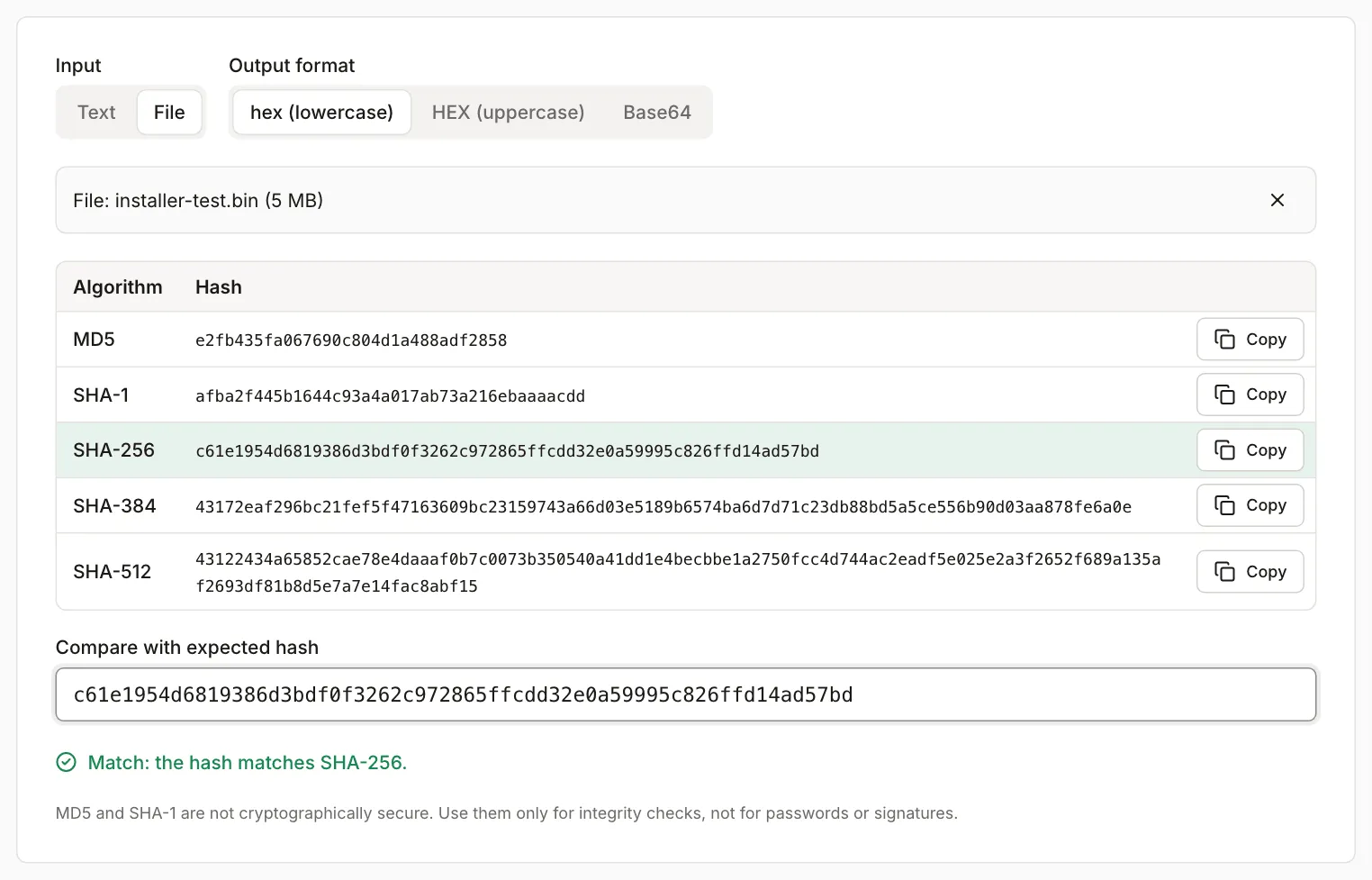
- Open the Hash generator and set “Input” to “File”. Drop in the downloaded file. It is not uploaded anywhere.
- The tool computes MD5, SHA-1, SHA-256, SHA-384 and SHA-512 at once.
- Paste the publisher’s hash into “Compare with expected hash”. The matching row turns green and the message reads “Match: the hash matches SHA-256.” You do not need to know which algorithm the publisher used.
How the tool compares hashes
The tool counts a hash as matching when the pasted text contains the full hash in hex (letter case and spaces do not matter) or in Base64. You can paste the hash together with what usually comes with it:
| Pasted text | Result |
|---|---|
| the hash alone, lowercase or UPPERCASE, also split by spaces | match |
| the Base64 form | match |
a whole sha256sum line: hash, spaces, and file name |
match |
a BSD-style line: SHA256 (file) = hash |
match |
a hash with a sha256: prefix |
match |
bytes separated by colons (c6:1e:19:...) |
match |
| the first 16 characters of the hash | no match |
| the full hash with one character changed | no match |
Part of a hash is never enough. Do not compare only the start and end by eye: a full comparison is one paste.
MD5, SHA-1 or SHA-256
The publisher picks the algorithm and you compare against the one they list. They differ in how well they resist deliberate tampering:
- MD5 (32 hex characters). RFC 6151, March 2011, states that MD5 is no longer acceptable where collision resistance is required, for example in digital signatures. A collision is two different files with the same hash, prepared together by an attacker.
- SHA-1 (40 characters). Researchers at CWI Amsterdam and Google produced the first SHA-1 collision on 23 February 2017 (shattered.io): two different PDF files with an identical SHA-1. On 15 December 2022 NIST announced that SHA-1 should be phased out by 31 December 2030 in favor of SHA-2 and SHA-3.
- SHA-256 (64 characters) belongs to the SHA-2 family and is what publishers normally use today.
All three catch a corrupted download. If a publisher lists only MD5 or SHA-1, check it, but read a match as “the file is not damaged”, not as proof of origin. If they list several hashes, compare SHA-256 (or a longer one).
Check it with a system command
You can paste a command’s output into the same compare field, file name included. Syntax from the vendors’ documentation (checked in October 2026):
| System | Command |
|---|---|
| Windows, PowerShell | Get-FileHash .\file.iso -Algorithm SHA256 (SHA256 is the default, Microsoft) |
| Windows, Command Prompt | certutil -hashfile file.iso SHA256 (syntax: certutil [options] -hashfile InFile [HashAlgorithm], algorithms: MD2, MD4, MD5, SHA1, SHA256, SHA384, SHA512, Microsoft) |
| macOS | shasum -a 256 file.iso (without -a it computes SHA-1, per man shasum) |
| Linux | sha256sum file.iso (GNU coreutils) |
If the publisher gives you a .sha256 file in the “hash, two spaces, file name” format, sha256sum -c file.sha256 on Linux or shasum -a 256 -c file.sha256 on macOS will do the comparison and print OK or FAILED. The download and the checksum file must be in the same folder, and the name in the checksum file must match the file on disk.
Example: one flipped bit
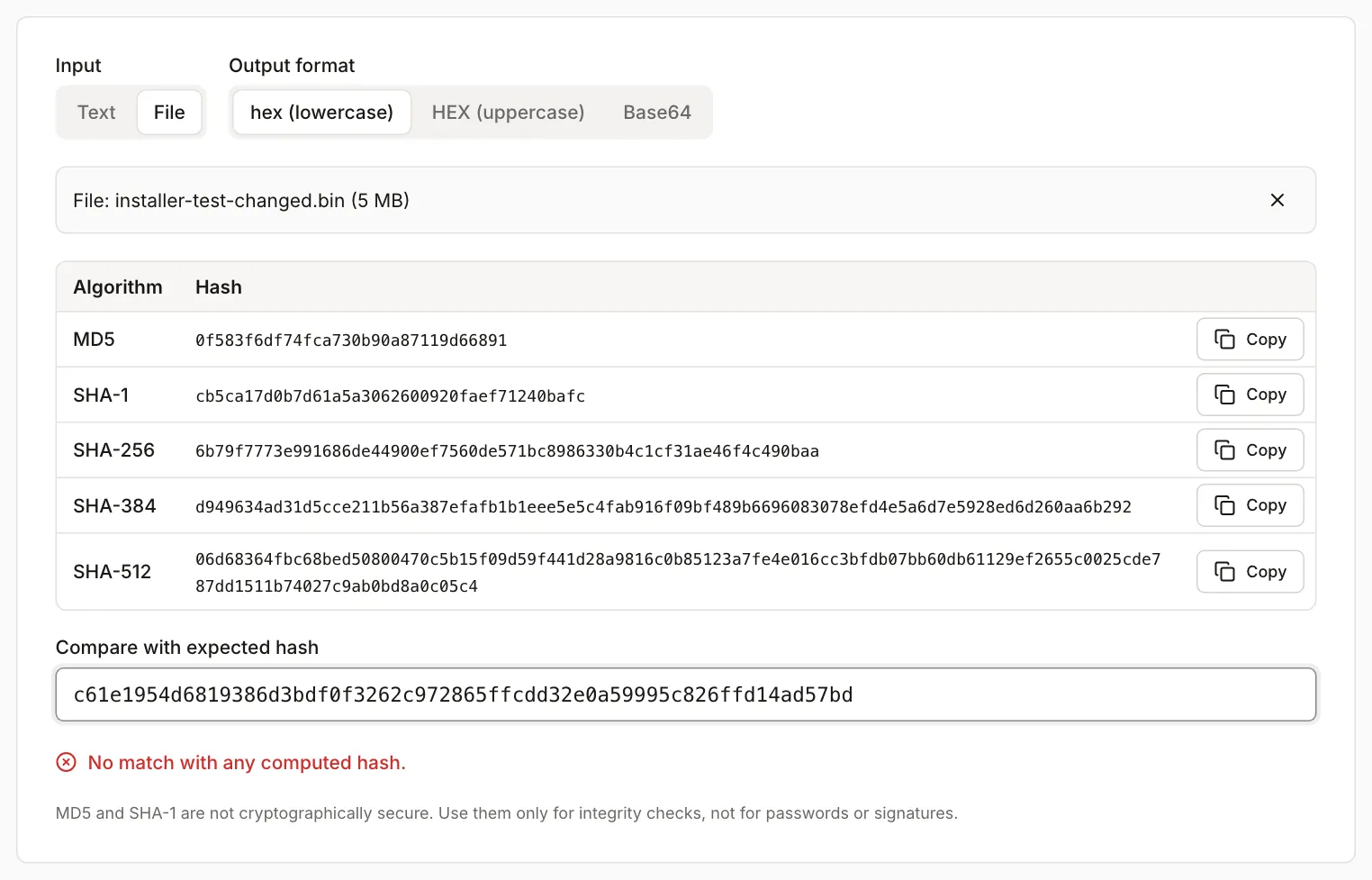
The test file installer-test.bin is 5,242,880 bytes (5 MiB) of pseudo-random data generated by a script with a fixed seed. The tool shows its size as “5 MB” because it counts in units of 1024 bytes. The second file, installer-test-changed.bin, is a copy with one bit flipped (the byte at index 1,000,000). Both files have the same size.
| File | SHA-256 in the tool |
|---|---|
installer-test.bin |
c61e1954d6819386d3bdf0f3262c972865ffcdd32e0a59995c826ffd14ad57bd |
installer-test-changed.bin |
6b79f7773e991686de44900ef7560de571bc8986330b4c1cf31ae46f4c490baa |
59 of the 64 characters differ, although the files differ by one bit out of more than 41 million. shasum -a 256 and Node.js (crypto.createHash('sha256')) give the same results. The MD5 hashes of the two files are also completely different: e2fb435fa067690c804d1a488adf2858 and 0f583f6df74fca730b90a87119d66891.
When we paste the first file’s hash into the compare field as the reference and load the second file, the tool shows “No match with any computed hash.” That is what a swapped or corrupted file looks like.
In a terminal the same test looks like this (shasum on macOS, with a checksum file that listed the original’s hash under the changed file’s name):
installer-test.bin: OK
installer-test-changed.bin: FAILED
shasum: WARNING: 1 computed checksum did NOT match
Limits of the tool
- The whole file is read into browser memory, and MD5 makes one more copy in memory. The device sets the upper limit, not the tool. A 200 MiB file took about 4 seconds in our test (Chromium driven by Playwright on our machine; your result depends on your hardware). We did not try larger files. For multi-gigabyte images, use a system command.
- SHA-1, SHA-256, SHA-384 and SHA-512 are computed by Web Crypto. MD5 comes from the tool’s own implementation of RFC 1321, because browsers do not provide it. On our test file it agrees with Node.js.
- Web Crypto needs a secure context (HTTPS). Without it the tool shows an error.
- The tool compares the full hash only (see the table above) and does not verify digital signatures.
The hashes do not match: what to check
- You pasted the full hash, not part of it.
- The algorithm is the right one: SHA-256 is 64 hex characters (44 in Base64), SHA-1 is 40, MD5 is 32.
- The hash is for this file: the version, operating system, architecture, and format (for example
.isorather than.zip). - You hashed the downloaded file, not its extracted contents. Publishers usually list the hash of the archive.
- Download the file again, ideally without intermediaries (VPN, proxy, download manager). An interrupted or rewritten download ends up with a different hash.
If a second download from the same source also fails to match, do not run the file and report it to the publisher.